There are a few ways to fill a show's lineup. Acts apply and you choose who plays. Or teams sign themselves up for a slot, first come, first served. Cage Match and mixers have their own guides.
Applications: you choose
This is how a new show starts.
- 1
In the show form, open Acts and keep Take applications from acts ticked. Set Applications close for a deadline, or leave it blank to take them until the show.
- 2
Share the apply link. The public page has an Apply to play button. On the show overview, Copy the apply link shows while none are waiting, and Download QR code has an Act applications code.
- 3
Acts fill in Act name, What do you do?, a Link to a video or socials, Group size, Contact name, their email and Preferred set length, then tap Send application. They get a copy with a link to edit it.
- 4
New applications show under Applications on the show overview. Tap Accept or Decline. The act gets an email either way. Open Add a personal note first to send a few words with it (up to 1,000 characters); it shows in the email and on the act's application page. With Accept selected or Decline selected, the hint under the note box shows how to put each act's first name in.
- 5
Accepted acts go to the end of the running order with the set length they asked for. Reorder them there, and change lengths with Set lengths.
- 6
To stop taking applications, edit the show and untick Take applications from acts.
- 7
To ask acts something of your own, open Edit the questions on this form on the applications page. Add a question (short or long answer, a number with a largest value, an email address, a link, a date, a choice, or yes or no), set the rules, and use Up and Down to order it. You can reword the usual questions too. Each answer shows on the act's card and in Download as CSV.
- 8
The same builder covers ticket booking (up to three questions, shown on the orders and door pages), volunteer shifts, session sign-ups, asking to join, team entries, auditions, courses and workshops: open Questions on forms in the group settings. Where a sign-up is one tap today it stays one tap until you add a question.
Invite an act yourself
Any time, whether applications are open or not. Right after you make a show, "Who's on the lineup?" asks; "Done: open the show" skips it.
- 1
Under Invite an act on the show overview, type the act's name. Groups already on ImprovTeam show up as you type: tap one and its owners and admins get the invite. You never see their addresses.
- 2
For an act that isn't on ImprovTeam, add an email if you have one and tap Invite: they get one email with Accept and Decline. The Add a personal note box is shown in that email and on the invite page. No email? Tap Invite anyway and send them the invite link from Copy invite link.
- 3
Already agreed in person? Add without inviting puts them straight in the running order.
- 4
An invited act shows nowhere until it says yes. Then it joins the end of the running order and gets the same You're in email as an accepted application. It is not on the public lineup until you announce it (see Announce the lineup).
- 5
Accepting asks the act to sign in or make an account. An act that isn't on ImprovTeam yet becomes a team run by whoever accepted, and its page opens on a short setup list. Send again works once an hour; Cancel invite withdraws it.
- 6
When an act answers, the show's owners, admins and its lead get one email or notification, with the act's name and who answered. Choose how under For organisers in your notification settings.
Ask the team's players: cast call
When you invite a team that is on ImprovTeam, its players can be asked Yes / Maybe / No first. Their answer is also their answer to the show on the team's calendar, so nobody is asked twice.
- 1
Under Invite an act, pick the team and leave Ask their players first ticked. Add At least and At most players if you want a range, like 3 to 6. The team can have a minimum of its own; the larger minimum wins.
- 2
The invite shows Waiting on the team. You see nothing about who said what.
- 3
Once enough players say Yes, the team is accepted on its own and you both hear about it. Its team organisers can accept early, accept anyway or decline at any time, or choose Let me confirm instead on the cast call so they accept by hand.
- 4
The answer-by date is 7 days before the show, or 5 days after the invite if that is sooner. If too few have said Yes by then, the team's organisers are asked Not enough players: accept anyway or decline. Nothing is declined for them.
- 5
Yes answers past your maximum become reserves, in the order they answered. If a cast member changes to No, the first reserve moves up and is told. If the cast drops below the minimum after the team is accepted, the act stays accepted and you and the team both get Cast below minimum.
- 6
Once the team is accepted you see the cast's names on the running order and the run sheet. You never see reserves, No answers or the rest of the team.
- 7
A team can also ask its players before it applies: on the apply page, an organiser of a team taps Ask my players first. Apply once enough have said Yes.
- 8
To set a minimum for the team, open the team's settings under Name, city and currency and fill in Minimum players for the team.
- 9
On the team's own show, the team's organisers see which of the cast are also booked at another group's show at about that time. You, as the show's organiser, never see another group's bookings.
After an act is accepted
Every accepted act is asked to confirm, and can tell you it can't make it with one tap.
- 1
The act gets an email with Confirm and I can't make it links, and a confirm-by date: 7 days before the show, or sooner if the show is close. On the running order you see Confirmed, Asked to confirm or Not confirmed yet.
- 2
If an act can't make it, it comes off the running order, the acts after it move up and are told, and you get a message. If you kept another act in reserve, the first reserve act is offered the slot with Take the slot and No thanks links. If it says no, the next reserve is offered it.
- 3
To keep an application in reserve, tap Keep as reserve on its card under Applications.
- 4
The day before the show, every accepted act gets a reminder with its call time.
- 5
To take an accepted act off the lineup, open Set lengths and tap Remove from the lineup. Open Add a message for the act first if you want to say why. The act is told You're no longer on the lineup and stays under Applications as Removed, not as waiting. Accept it again to put it back.
- 6
Players and act contacts see every booking, with Confirm and I can't make it, under My bookings in the Me menu.
Announce the lineup
A new show's lineup is private. The public page says "Lineup coming soon" until you announce it. Acts you accept hear from you first.
- 1
On the show overview, tap Lineup for each act, or Go public for everything at once. Each accepted act shows as Private or Public.
- 2
Tap Go public now on one act, or open the Go public sheet to tick the acts that go public and see who will be told. Leave Tell people chosen and your followers get a notification or an item in the app, and your news subscribers get an email, over the next few minutes. Choose Don't tell anyone, just make it public to announce quietly. The acts you announce are always told You are announced, with the page and a share image.
- 3
On the same sheet, Or choose when saves a date and time with the same ticks, and the acts you ticked go public then, by itself. Acts see Not announced yet: please keep it quiet until that date until it does.
- 4
Hide keeps an act off the public lineup whatever else you do. Make private again takes an act, or all of them, off the page and sends nothing to anyone.
- 5
With Plus you can give each act a public name and blurb, a photo, a headliner flag and an order. Headliners show first, and the Lineup poster template and the share image use those names. Only add a photo of someone who is happy for it to be public.
- 6
Shows that were already public before this existed keep announcing acts as you accept them, until you tap Make private again: all.
Message the acts
- 1
On the show overview, tap Message the acts. Write a subject and a message and tap Send message.
- 2
Every accepted act gets it by email or notification, over the next few minutes. An act that is a group on ImprovTeam is reached through up to 3 of its owners and admins. You never see an address.
- 3
You can send 5 messages a day for one show. Acts can't reply here.
Volunteer rota
Front of house, bar, tech and door shifts for a show or any event of your group.
- 1
On the show overview, under Who is on tonight, tap Set up the rota (for another event, open its page and add /rota to the address). Add a shift: the role, when it starts and ends, how many spots, and a short note.
- 2
Members sign up with one tap on the rota page. Tick Anyone with the link can sign up on a shift and people outside the group can take it with a name and email; they see how many spots are left, not who is on.
- 3
Volunteers get a reminder the day before, by email or notification. They can leave a shift on the rota page (signed in); you can take someone off a shift or remove it.
- 4
Who is on tonight on the show overview shows each shift with names and open spots. Download the rota (CSV) lists role, times and names only.
Team slots: bring your own team
Teams sign themselves up for a slot. When the slots are full, the next teams join a waitlist. When a team withdraws, the next one is pencilled in; you invite it, then announce it.
- 1
In the show form, pick Bring your own team (first come, first served). Or open Team slots on the show overview and tap Turn on team slots.
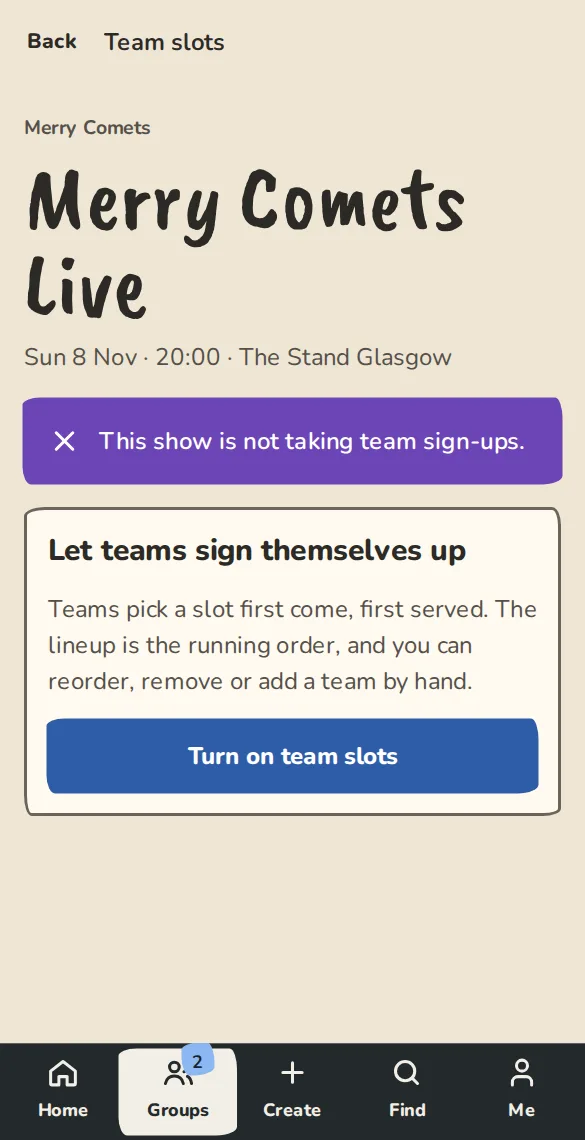
The team slots page of a show on a phone, with the switch to let teams sign themselves up. - 2
On the Team slots page, open Organiser. Set Slots (6 to start), Minutes per slot (15), how many hours before the start sign-up closes (24) and the Biggest team. Tap Save.
- 3
Teams need an ImprovTeam account starts on: someone signs in and signs their team up. Turn it off and anyone can sign up with a name and email.
- 4
Add A note to teams for tech, arrival time or what to bring. It shows on the Team slots page.
- 5
Teams tap Sign up your team on the public show page. They pick one of their teams or type a name, give the number of players and one line about their set, then tap Sign up.
- 6
If they picked one of their teams, ticking Tell my team emails each member once, over the next few minutes.
- 7
You can reorder the lineup with the arrows, Remove a team, or use Add team under Add a team by hand. The lineup is the running order on the show overview.
- 8
You hold the queue: move a waiting team up, down, to the front or to the back, bring one in now, send a team back to the queue, edit a team, close or reopen sign-ups, and see who is in two teams. Cage Match explains each.
Pay your acts
Record what each act is paid for a show, and what you paid. You pay outside the app (a bank transfer, cash, their own payment link); the app keeps the record and the act taps "Received".
- 1
Open the show overview and tap Paying the acts. Each accepted act gets a Fee: Unpaid, Fixed fee or Door split. Pick one, type the amount for a fixed fee, and tap Save. Leave Tell the acts whose fee we changed ticked to send each one a short note.
- 2
Tap Open on an act to add Expenses on top (travel, accommodation) and to see its payments. Expenses are part of what you agreed.
- 3
The door split shares the takings between the acts that are on it, after the costs. Takings are your ticket sales on the app less refunds, plus the cash you took at the door. Set Evenly or By weight, change any figure, and watch each share update. It needs the Plus plan to save.
- 4
After you pay an act, open it and tap Mark paid with the date and amount. It is told, and taps Received on its own page once the money has reached it. The first payment on a door split locks the split so the shares cannot move.
- 5
Each act can add where to pay it (bank details as text, or its own payment link). Only you and the act, or the team it plays for, can read that. A team's fee is paid to the team, not to each player.
- 6
Open an act and copy Their page to send it the link. It shows the Statement: what was agreed, what was paid and when. It is a record, not an invoice, and has a printable page.
- 7
Workshop and course teachers work the same way: open the workshop or course and tap Fee and payments. A fee can be fixed or per student. At a festival, Fees and payments on the festival page lists everyone, and the Organisation plan can mark many paid at once and download a CSV.
After the show: thanks, feedback and the next show
A few days after a show or festival, each act is thanked and asked how it went. You read the answers, and can make the next show from this one.
- 1
Open the show and tap After the show (the wrap-up). Under Thanks and feedback, acts are asked 2 days after the show ends. Change the days, add a thank-you note, or tap Send now. It goes out once, over the next few minutes.
- 2
Each act gets a short form: a score out of 5 and two lines. Tap Edit the acts' questions to reword them, hide the two lines or add questions of your own. A team is reached through its contact or its owners.
- 3
To ask the people who held tickets too, tick Ask ticket holders. It is off unless you tick it. It goes to whoever holds the ticket now, not a buyer who passed it on, and you read their answers without their names.
- 4
The answers appear on the wrap-up page under Feedback, with the average score and how many answered. Free text is listed as written, newest first. The Plus plan adds Summary: tickets, check-ins, the acts with what each is paid, and the feedback in one page.
- 5
Tap Copy to the next show to make the next one: pick the date and it brings the settings, ticket types, running order and way of getting acts on the lineup. Tickets start Not on sale yet. Tick Also bring the acts to invite them again, with their agreed fees if you like; nothing is sent until you do.
- 6
For a festival, Wrap-up on the festival page does the same for the acts, the workshop leaders and the audience (Organisation plan). Run this festival again makes the next edition with the settings and questions.
- 7
On a team's Money tab, a fee a show marks as paid to the team's act shows as Received. It is a record only: nothing is split or credited, and the team decides what to do with it.
Good to know
What it doesn't do yet
Try it in a sandbox
Make a private copy with made-up people and follow these steps without changing anything real.
Still stuck?
Write to us from the contact page. Say which page you were on and what you tapped.