A show can have its own public page, tickets, a door list, a running order and a poster with a QR code. Owners and admins of a group make them.
If the show is already on your schedule, open it, open the event options and tap "Sell tickets with ImprovTeam", then "Set up tickets". Everything on the event stays.
Make a show
- 1
Open the group, then the More tab, then Shows. Or tap Create, pick Show, then the group. Open Create
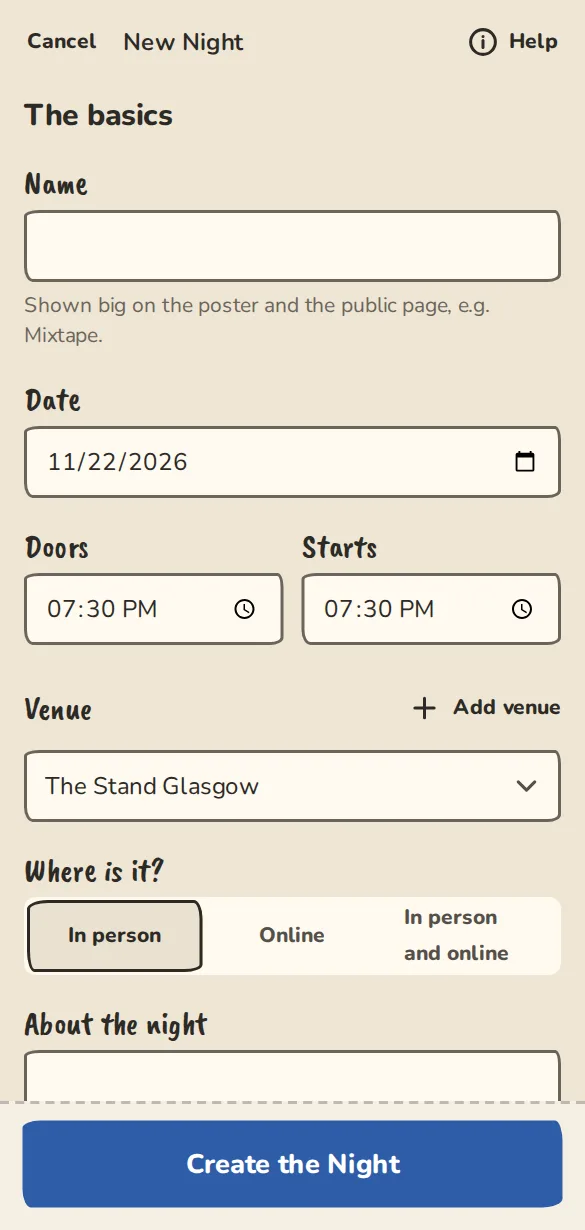
The new show form on a phone: title, date, doors and start time, venue and tickets. - 2
Under The basics, give it a name. It goes big on the poster and the public page, and it becomes the web address: a show called Mixtape lives at yourgroup.improvteam.com/mixtape.
- 3
Set the date, Doors and Starts. The form suggests the weekday and times of your last show, or the next Friday if this is your first.
- 4
Pick a Venue, or tap Add venue to add one. Under Where is it? choose In person, Online or In person and online. An online show needs its Meeting link.
- 5
Open Tickets to set how many there are and what they cost. It starts with Standard £8 and Concession £6; change or clear them.
- 6
Open Acts and choose How acts get on the lineup: Applications (you choose), Bring your own team (first come, first served), Cage Match or Mixer (individual sign-up).
- 7
Tap Create the show. You land on the show overview, or on the Team slots page for team slots and Cage Match.
The show overview
This is the page you run the show from. Find it again on the event page, under "Show overview".
- 1
The two cards at the top show Tickets sold against your total, and Acts: accepted, pending and declined.
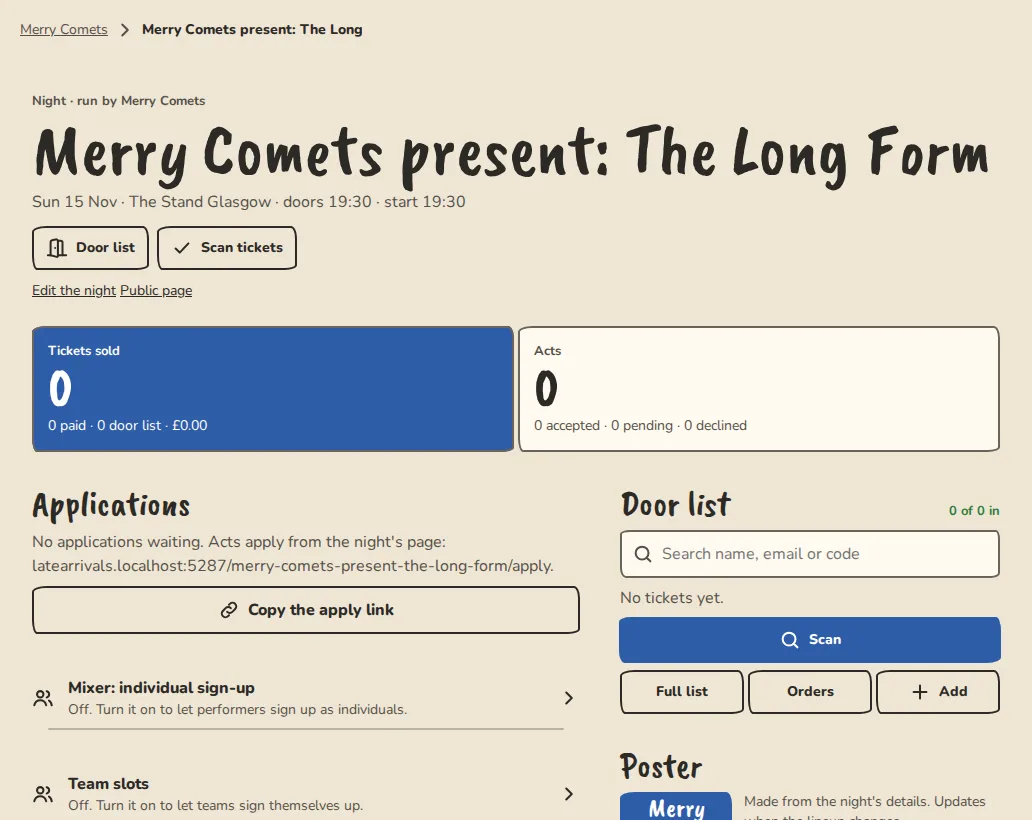
A show's overview on a computer: tickets sold, the running order and the door list. - 2
Applications shows the three oldest waiting. Tap Accept or Decline, or See all for the rest.
- 3
On a wide screen, Edit the show sits under the title. On a phone, tap the three dots for Show options: edit, the full door list, scanning, orders and refunds.
- 4
To cancel the show, open Event settings from the options and cancel it from the event page. Everyone with a ticket gets one email saying it is off.
- 5
To run the show every week or month, open Repeat this show (under the title on a wide screen, in the options on a phone). Pick how often (every week, every 2 weeks, or monthly on a weekday such as the first Friday), how it ends (after a number of shows or on a date) and any dates to skip. The next dates appear with the same tickets and settings, each with its own lineup; open any one to change it, or edit one show and choose This and later to update the plain ones after it. Stop repeating keeps the shows already made.
Run a show at a theatre
A theatre can let its house teams, or any team, run a show in its rooms, or run one on its behalf. It only shows once the theatre has switched it on.
- 1
Open the group's Settings, then House teams. Under Run a show at a theatre, tap Make a show here next to the theatre. If you see nothing there, that theatre has not switched it on for your team.
- 2
Fill in the show as usual. Under At the theatre pick a room and who takes the ticket money: your team with its own payment settings, or the theatre with theirs.
- 3
If the theatre approves each show, yours stays hidden, with a note on its overview, until the theatre agrees. Nothing is sold and no room is booked until then.
- 4
Already have a show? Open its overview and tap Present it at a theatre to ask the theatre to list it as presented there. The show stays yours.
- 5
When a show is agreed, its page, share card and the theatre's page name both of you. The theatre can see it, move it or cancel it and read its door list and wrap-up; it gets no other rights in your team.
- 6
If a theatre asks you to run one of its shows, find it under Shows with a theatre in House teams settings. Agree, and your team's admins can run that one show's acts, running order, door list and wrap-up numbers, and nothing else.
Running order
- 1
Accepted acts join the running order at the end, in the order you accept them. Each row shows when it goes on and how long it is.
- 2
Move a row with the up and down arrows, or drag it by its handle.
- 3
Tap Interval to add a 15-minute break, or Host set for a 10-minute set by the hosts.
- 4
Tap Set lengths to change the minutes of any row and the Changeover between acts (min), which starts at 2. Remove an interval or a host set from the same sheet.
- 5
The page works out when the last act is off and when the show finishes, so you can tell the venue.
Public page, poster and QR code
- 1
Under Poster, tap Copy ticket link. That is the public page: date, doors, venue with a map, the lineup and Get tickets. Paste it into the group chat or your socials.
- 2
Tap A4, A3, Square or Story to download a poster made from the show's details, with a QR code that opens the show. It is a PNG, drawn in your browser. Without JavaScript you get the SVG file instead. Design the poster opens the poster builder: twelve templates, a choice of ten fonts for the title, the date and the text, colours (with a warning if text would be hard to read), what shows (photo, logo, QR code, price, venue, acts, a sponsor line), and downloads as PNG, PDF or SVG. Save it for this show or as the default for your group. Under Look in the quick tools you can also pick Programme, Big date, Photo or Minimal, each with a tall Story size. If your site has a cover photo, team photo or logo, Picture and Picture fit put it on the poster, filling the space or shown whole.
- 3
For your own artwork, use Download QR code. Pick Show page or Act applications, the colours, then Download SVG (best for print) or a PNG at 512, 1024 or 2048 px.
- 4
Tap Post news about it to write a news post about the show.
Good to know
What it doesn't do yet
Try it in a sandbox
Make a private copy with made-up people and follow these steps without changing anything real.
Still stuck?
Write to us from the contact page. Say which page you were on and what you tapped.