A show can sell free tickets, paid tickets, or both. Paid tickets go by card into your group's own Stripe account, or buyers reserve and pay you directly. The money never passes through ImprovTeam.
Set up tickets
- 1
In the show form, open Tickets. Set Tickets in total to the room's capacity across every ticket type, or leave it blank for no limit.
- 2
Under Ticket types, give each a name and a price, and a note if it helps (students, unwaged). A blank price is free. Add ticket type adds another, up to 6.
- 3
For a tax line, add a Tax note like VAT 20% under More options. It is only shown under the prices: nothing is added or collected for you.
- 4
To take cards, connect Stripe: open the group's Settings, then How people pay you, then Connect Stripe. Without Stripe, paid tickets are reserved and paid to you directly.
Tickets on another site
If you already sell on Eventbrite, Ticket Tailor or another site, keep doing that. The show still has its public page, acts, running order and poster.
- 1
In the show form, open Tickets and choose Tickets elsewhere. Paste the link to your ticket page and pick where it is sold, or choose Other and type the name.
- 2
The show's page then shows Get tickets on and the site's name where the buy form would be, and listings show a Tickets on link next to the Details link. The link must start with https://.
- 3
Ticket types, caps, holds, the waitlist, tell me when alerts, orders, refunds and ticket scanning are switched off for these shows. Use the attendance list for a head count at the door.
- 4
You can switch back to selling here at any time. You can only switch to another site while no tickets have been sold in ImprovTeam on that show. Repeating shows copy the link.
Paying the group directly
Buyers reserve, pay you by a payment link, bank transfer or cash, and you mark it paid. The tickets go out then.
- 1
Without Stripe this is always on. With Stripe, open Settings, then Pay directly, and tick Also accept payment directly.
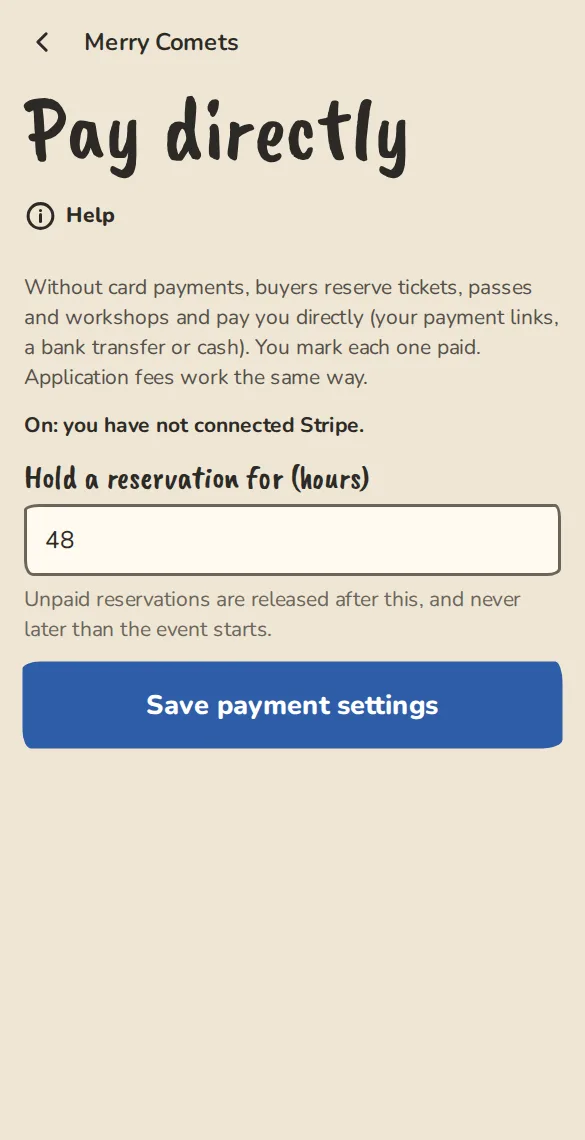
The "Pay the group directly" settings on a phone: the switch and how long a reservation is held. - 2
Set Hold a reservation for (hours). It starts at 48. A hold never runs past the start of the show.
- 3
The buyer taps Reserve and pay and sees what they owe, a reference to put on the payment, how long it is held, and your payment links.
- 4
When they have paid, they tap I have paid and you are told. Find them under Awaiting payment on the show's Orders page, or at the top of the full door list, and tap Mark paid.
- 5
An unpaid reservation is released when its hold ends, and the buyer is told. Tap Cancel on the Orders page to release one sooner. With Cash on the door on, a reservation is held until the show starts, shows Pay on the door on the door list, and you can take the cash there or on the scan page by typing its reference, then mark it paid.
For buyers
- 1
On the show's page tap Get tickets. Use plus and minus to choose how many of each type, up to 10 at once.
- 2
Fill in Your name (for the door list) and Email for your tickets. If you are signed in, the tickets go on your account instead.
- 3
Tap Get 2 free tickets, Pay with card or Reserve and pay the group directly. The price is what you pay: no card fee is added.
- 4
Paying by card holds your tickets for 10 minutes. If you take longer, they go back on sale.
- 5
Your tickets arrive by email. Each has its own QR code and a 6-character door code. Show either at the door. Open Sign-in and account
- 6
If you can't go, tap Transfer tickets to someone else on your tickets page, pick the tickets and give their name and email. They get an email to accept. Until they do, the tickets and QR codes stay yours, and you can cancel the offer. Once they accept, they get their own QR codes and yours stop working. If they decline, or do not answer within 3 days (or before the show's cut-off, if that comes first), you keep the tickets and are told.
- 7
When your tickets page shows Add to Google Wallet or Add to Apple Wallet under a ticket, tap it to keep that ticket in your phone's wallet. The pass has the same QR as the page and scans the same way at the door. If the show moves or is cancelled, a Google Wallet pass is updated; an Apple Wallet pass keeps what it said when you added it, so your tickets page is the one to trust.
Sold out: the waitlist
When the show (or one ticket type) sells out, the tickets page offers "Join the waitlist" instead of the ticket form. No account needed.
- 1
People give their email and how many tickets they want, then tap Join the waitlist. They get an email saying they are on it, with a link to take themselves off.
- 2
When tickets come back (you cancel or refund one, a reservation runs out, or you raise Tickets in total), the first person on the list gets an email. Those tickets are held for them for 12 hours, never past the start.
- 3
They tap Get my tickets in the email and buy as usual. If they don't, the tickets go to the next person after 12 hours.
- 4
The Waitlist box on the show overview shows how many are waiting and how many are holding tickets, never who. Turn the waitlist off takes everyone still waiting off it.
Promo codes and pay what you can
Give students, early birds or a group a discount, or let people pay what they can. The money still goes to your own account.
- 1
Open the show overview and tap Promo codes (owners and admins). Give a code, say whether it takes a percentage or a fixed amount off, and optionally how many times it can be used and the last day it works.
- 2
Buyers type the code in Have a code? on the ticket page. It is taken off at payment, and a code never takes an order below nothing. One use is one order, however many tickets are in it.
- 3
Turn a code off at any time. A code nobody has used can be deleted; one that has been used stays so the record is right.
- 4
For pay what you can, tick Pay what you can on a ticket type when you make or edit the show. The price becomes the suggestion, and Least a buyer may pay sets the minimum (blank means anything, even nothing). Buyers type their own amount.
- 5
A code can also be limited to one use per email address. By default a code stands alone; tick Can be used together with another code on two codes and buyers can type both, with a space between. Codes for festival passes, workshops and courses are on the page Promo codes in your Courses, Workshops or Passes list.
Waivers, photos and video
Your own waiver or terms text, ticked before anyone books. ImprovTeam supplies no waiver text and cannot tell you whether yours is enough: have it checked by someone qualified.
- 1
Open the show (or the workshop or course) to edit it, and write your text in Your waiver or terms. The box to agree is never ticked for people: they tick it themselves, and they cannot book without it.
- 2
Tick Ask about photos and video to add a separate, optional question. Saying no never stops anyone booking.
- 3
Tap Who has agreed on the show overview to see each name, whether they agreed to the current text, their photo and video answer and when. Download the list as a CSV from there. The door list shows the same marks.
- 4
Change the text and everyone who agreed before is shown as older version until they agree again; their earlier agreements are kept. Records are deleted 12 months after the event.
Companion tickets and the access tick
For someone who comes along to support another ticket holder, such as a carer.
- 1
Add a ticket type and tick Companion ticket. Set any price, free included. It is only sold with another ticket, one for each, and it stays with the order it came with.
- 2
If a ticket holder gives their ticket back or you refund it, a free companion ticket of the same order goes with it. A paid companion ticket stays until you decide about it.
- 3
Turn on Offer a talk-about-access tick to add one tick to the booking form: I'd like to talk about access, please get in touch. Nobody gives a reason and ImprovTeam keeps no health information. Only this show's organisers and door see who ticked, and it is cleared 30 days after the show. Your venue's access facts show on the show page by themselves.
The guest list
- 1
Open the show overview and tap Guest list. Paste one guest a line: Sam Jones is one ticket, Sam Jones +2 is three in Sam's name. Put an email after a comma to send them the ticket if you tick Email each guest their ticket.
- 2
Guests are free tickets. They count against the show's capacity and show on the door list with your note (press), where the door ticks them in.
- 3
Set Most free tickets to keep the guest list to a number you choose. To take a guest off, cancel their ticket on the Orders page.
After the show
A record of what the show took and how it splits. ImprovTeam never holds or moves the money: you settle with the venue and the acts yourselves.
- 1
Open the show overview and tap After the show. It adds up the tickets paid in the app, takes off refunds, and adds the cash the door took and any other costs you type in.
- 2
Choose what the venue takes (a percentage of the net takings, or a fixed amount) and what the acts share. The venue comes first; the acts' pool is shared equally between the acts on the lineup.
- 3
Copy the statement as text for a message to the venue, or download it as a spreadsheet. See all your shows adds up a whole season.
- 4
Tap Send the thank-you to thank the people who came. It goes out over the next few minutes, once per show, and every email has an unsubscribe link.
Lost tickets and resending
- 1
Buyers open Lost your tickets? at the foot of the show's tickets page and type their email. If it has tickets for the show, a link goes there. The page says the same whatever the address, so nobody can check who bought.
- 2
The link gives them fresh ticket links and QR codes, here and by email. The old ones stop working. Door codes stay the same.
- 3
From the show's Orders page, tap Send tickets again on an order or a free ticket to do it for them straight away.
If you cancel the show
- 1
Cancel it from the event page. The confirmation says how many people with tickets will be told.
- 2
Each ticket holder gets one email over the next few minutes, and so does anyone holding a reservation. Paid ones read that refunds are up to you. Refund card payments from the Orders page; direct payments are between you and the buyer.
- 3
The tell me when list and the waitlist are deleted without an email.
- 4
Closing the whole group (Settings, Danger zone) cancels its upcoming shows the same way: every ticket holder of each show gets that show's email.
- 5
Changed your mind? Open the show from the shows list and tap Un-cancel this show. It goes back on, tickets still work, and everyone holding one gets an It's back on email. It can't be undone once the show has started: change the date first. The tell me when list and the waitlist are not brought back.
Emails to ticket holders
- 1
The day before the show, from 9 in the morning, everyone holding a ticket gets one reminder: when, doors, where, directions, and a button to find their tickets. Refunded or cancelled tickets get nothing, and nor does a show that is cancelled.
- 2
When you change the date, the start time, the doors or the venue, tick Tell ticket holders at the foot of the edit form (it is on by default). Each holder gets one email with what changed, old and new. Other edits (name, text, prices, caps) send nothing.
- 3
Emails go out over the next few minutes. Shows with tickets on another site have no ticket holders here, so none of this applies to them.
Copies and lists
- 1
Duplicate on the show overview opens a new show form filled in from this one (name, venue, times, tickets, text, switches, how acts get on the lineup). Pick the date and save. Sales, acts and applications are not copied.
- 2
Download lists on the overview saves the door list (names, email addresses, ticket type, checked-in time) and, for organisers, the orders as spreadsheets (.csv). Amounts are in the smallest unit of your currency (pence, cents) with the currency code beside them.
- 3
The door list has your ticket holders' email addresses. Keep it to running this show and delete the file when you are done.
Good to know
What it doesn't do yet
Try it in a sandbox
Make a private copy with made-up people and follow these steps without changing anything real.
Still stuck?
Write to us from the contact page. Say which page you were on and what you tapped.