The door list is everyone with a ticket. Check people in by tapping their name, by scanning the QR code on their ticket, or by typing their 6-character door code.
Owners, admins and hosts of the group can run the door, and so can front-of-house staff with the Door or Box office role. Sign in on the phone you will use before the doors open.
From the list
- 1
Open the show overview and tap Door list. On the day, the group's More tab also has the door list under On tonight.
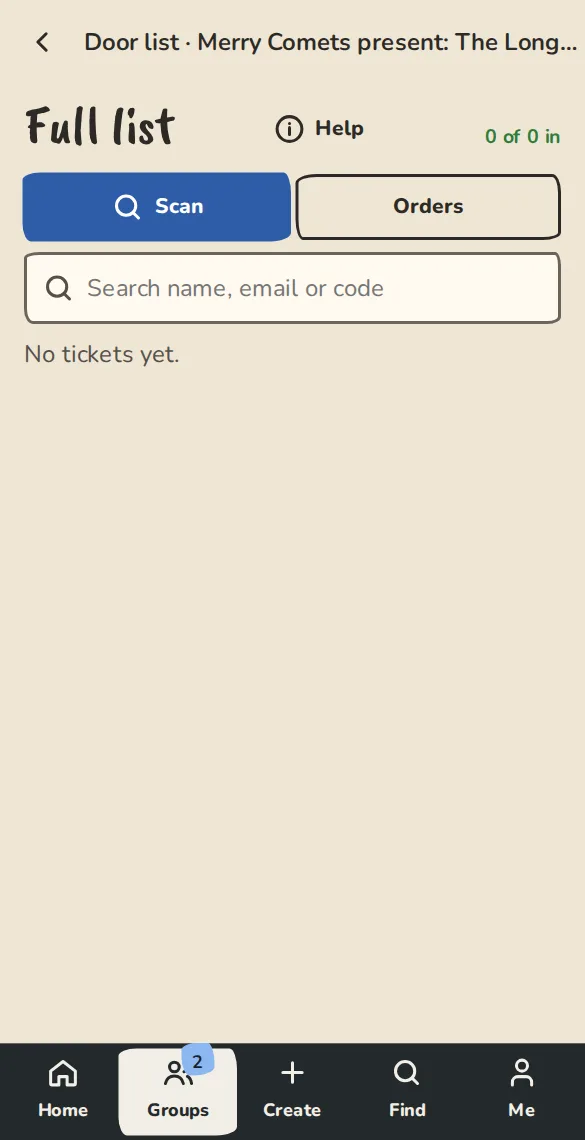
A show's door list on a phone, with a check-in button by each name. - 2
Search by name, email or code.
- 3
Tap the switch next to a name to check them in. Someone who bought 2 tickets is one row, and the switch checks in both. Tap it again to undo.
- 4
The count at the top, like 12 of 40 in, goes up as people arrive.
- 5
Tap Full list for one row per ticket with its door code. Reassign there gives a ticket to someone else straight away, with no need for them to accept: they get their own QR code and the old one stops working. A row marked transfer pending is a ticket its holder has offered to someone who has not answered yet; it is still valid with the holder.
Scanning tickets
- 1
Tap Scan tickets on the show overview, or Scan under the door list.
- 2
Tap Scan a ticket QR code and allow the camera. Point it at the ticket on their phone or on paper.
- 3
The camera stays on. Each answer shows over the camera for a couple of seconds and then clears by itself, so you can point it at the next ticket straight away: there is no Scan another ticket button to tap. The same QR code is ignored for 3 seconds so one ticket is not read twice. The phone buzzes on each scan, and Beep on each scan turns a beep on (it remembers your choice). The screen stays awake while the camera is on.
- 4
Green In: Ada with 12 of 40 in means let them in. Amber Already in at 20:05 means that ticket has been used. Red Not valid means it was cancelled or refunded, and red Not a ticket for this show means the code is not one of this show's tickets. Last scans under the camera shows the last five, each with Undo if you let the wrong person in.
- 5
If the QR code won't read, type the code from the ticket into Enter door code and tap Check in by code.
- 6
If the scan button doesn't show, your browser can't read QR codes in a page. Point the phone's own camera app at the ticket instead. Signed in as an organiser, you get a big Check in button, then Scan the next ticket.
No signal at the door
- 1
Open the Door or Scan page once while you have a signal. The phone saves the ticket list and the line Ready offline · 120 tickets · saved 19:02 tells you it has. It refreshes by itself every few minutes while you are online, and Refresh does it now.
- 2
With no signal the page still opens and the camera still scans. Tickets are checked against the saved list at once, with the same green, amber and red answers. N scans waiting to upload counts what has not reached the server yet.
- 3
A ticket that is not on the saved list (bought or refunded after you opened the page) says Not in the offline list. Admit anyway lets the person in; it is checked when you are back online and the organisers see it on the door page under Needs a look.
- 4
When the signal returns the scans upload by themselves. If two phones let the same ticket in, the earlier scan counts and the later one is flagged Already in (other phone, 20:14).
- 5
The list and the saved page are deleted from the phone the morning after the show, and when you sign out. A scan that has not uploaded yet is kept, and the page warns you until it has.
Walk-ups, comps and pay at the door
- 1
Under the door list tap Add. Type the name, how many tickets (up to 10) and a note if you like.
- 2
Pick Comp for a guest or On the door for someone paying now. Add their email if they want the ticket sent. Tap Add to list.
- 3
People who reserved and pay you directly show on the full list under reservations not paid yet. Take the money, tap Mark paid, and their tickets are issued.
- 4
If anyone bought merch for this show, Merch to hand out is on the full list too. Tap Handed over as you give it out.
Good to know
What it doesn't do yet
Try it in a sandbox
Make a private copy with made-up people and follow these steps without changing anything real.
Still stuck?
Write to us from the contact page. Say which page you were on and what you tapped.