Cage Match is a run of shows. The champion team takes on a challenger, the audience votes from their phones, and the winner stays on for next time.
Owners and admins set it up and run the voting screen. The audience needs nothing but a phone.
Set up the series
- 1
In the show form, pick Cage Match under How acts get on the lineup. Or on the show's Team slots page, give a Series name and tap Turn on Cage Match.
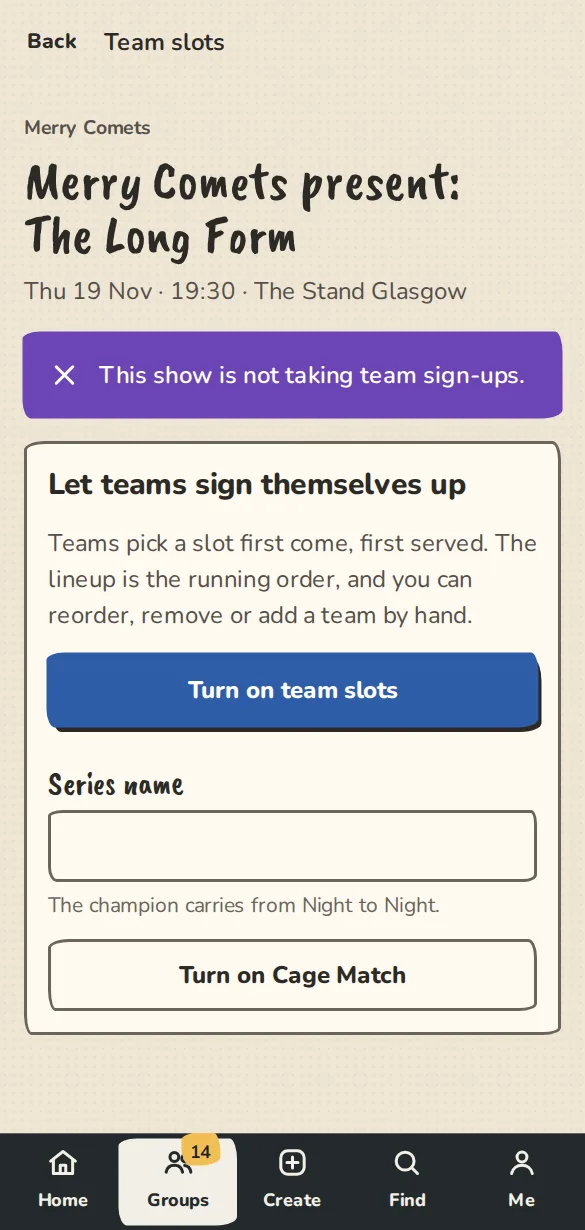
A show's team slots page on a phone, with the Series name box and the Turn on Cage Match button. - 2
Under Organiser, Slots counts the champion plus the challengers. 2 is a head to head; 3 is a three-way.
- 3
Under Set the champion, type the Champion team and tap Save champion. If there is no champion yet, the first winner takes the title.
- 4
Challengers sign up from the public show page, like any team slot. When the slots are full they wait in the Challenger queue. Tap To the front to move a team to the front of the queue (more on the queue below).
On the show: the vote
- 1
On the Team slots page, under Audience vote, tap Open the voting screen. Put that screen on the projector.
- 2
Tick Voters need a ticket code if only ticket holders should vote, then tap Open voting. You need at least two teams on the lineup.
- 3
The screen shows a QR code and a short link. People open it on their phone and tap the team they want to win. Each phone gets one vote, and nobody needs to sign in.
- 4
The tally on the screen updates as the votes come in. Tap Close voting when the room is done.
- 5
Under Confirm the winner, keep The team in the lead, or pick a team yourself to settle a tie after a hand-count. Tap Confirm winner. If you got it wrong, Undo the winner on the same screen opens the result again.
- 6
The public show page then shows who beat whom, and the series updates: a champion who holds on adds a win, a challenger who wins takes the title.
Run the queue
- 1
On the Team slots page, every team on the bill and in the queue has its own buttons. Only the organisers see them.
- 2
A waiting team can move up or down, To the front or To the back. Bring in now puts it in a slot straight away; when every slot is taken you choose which team goes back to the queue, or add a slot.
- 3
A team on the bill can go Back to the queue (it is not deleted, and waits at the front), or be removed. Edit changes its name, size, set line and Who's playing?.
- 4
Under Sign-ups, Close sign-ups now shuts the form and Reopen sign-ups holds it open past the closing time. Back to the closing time hands it back to the timer.
- 5
The list at the bottom shows what the organisers did, newest first.
Invite, then announce
- 1
A team that gets a slot from the queue, as the next challenger, carried over to the next show or brought in by you, is Pencilled in. Nobody is told and nothing is public yet.
- 2
Tap Invite (or Invite all pencilled in) to ask the team. Its contact gets a one-tap Accept or Decline by email or push. You can set an Answer by time. A reminder goes after 48 hours if there is no answer, unless you turn it off.
- 3
If a team accepts it is Confirmed. If it declines the slot is free again and you see Declined. Pencil in the next team?: one tap pencils in the next team in the queue. Nothing moves up by itself.
- 4
A team that signed up straight into a free slot is confirmed and public at once. A team you add by hand is confirmed, but not public until you announce it.
- 5
Tap Announce (or Announce all confirmed) to make a confirmed team public on the show page, the series page and the share kit. Tell followers and subscribers is the same choice as announcing a lineup. Announce stays off until the team has accepted.
- 6
The public show page shows only announced teams, and says how many more are still to be announced. Teams that were on the bill before this existed stay public.
See who is double-booked
- 1
When a team signs up it can say Who's playing? (names, up to 12). A team signed up as one of its ImprovTeam groups can tick its members.
- 2
If the same person is in two teams on the show, or in a team and another act on the bill, each team shows {name} is also in {other}, and a Clashes box sums it up.
- 3
Names a person typed by hand are matched by name and marked same name: it could be two people.
- 4
Only the show's organisers see this. It never shows on a public page or to another team.
The next show
- 1
Tap See the series for the series page: the champion and their streak, the challenger queue and past results.
- 2
Tap Create the next show. It copies the last show a week on, with its title, time, venue and ticket types. The champion and the waiting challengers carry over.
- 3
Open the new show and check the date and tickets before you share it.
Wi-Fi QR on the projector
- 1
On the show overview, open Wi-Fi for the projector. Type the Network name and Password, or leave the password blank for an open network.
- 2
Under Where to save it, pick For every show at this venue or For this show only. Tap Save Wi-Fi.
- 3
On the results screen, switch between Show voting QR, Show Wi-Fi QR, Show both and Hide QR codes. Full screen fills the projector.
Good to know
What it doesn't do yet
Try it in a sandbox
Make a private copy with made-up people and follow these steps without changing anything real.
Still stuck?
Write to us from the contact page. Say which page you were on and what you tapped.