For a team's practices, shows and socials, the organisers need to know who is coming. You answer Yes, Maybe or No, and the cast count updates for everyone.
Drop-ins, jams and theatre sessions work differently: you tap "Sign up" for a place instead.
In the app
- 1
On Home, anything waiting for you is under Needs you. Tap Yes, Maybe or No on the card. It saves at once and moves down to Coming up.
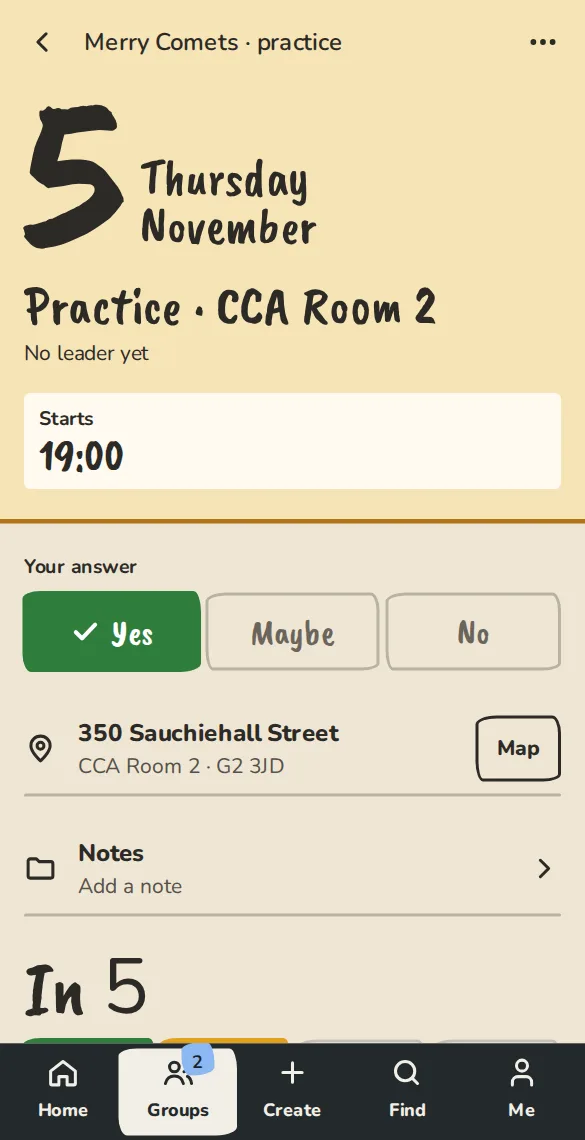
A practice's page on a phone: date, time and venue, the Yes, Maybe and No buttons, and who is coming. - 2
Or open the event and tap your choice under Your answer.
- 3
On a group's Schedule tab, the grid has your column first. Tap one of your cells to open that event and answer.
From an email
- 1
When an organiser adds an event, you get an email. Tap Yes, I'm in, Maybe or No, can't. You don't need to log in.
- 2
A page opens and saves your answer. If it shows a Confirm button instead, tap it.
- 3
To tell the organiser something, type it in the note box on that page (for example Add a note for Aileen), such as Away that weekend, and tap Save note.
- 4
The buttons work for 14 days, or until the event is over. If one has run out, tap Email me a fresh link.
From a notification
- 1
Open Settings, then Notifications, and tap Turn on notifications for this device. On iPhone and iPad, add ImprovTeam to your home screen first. Open Notifications
- 2
Under What to send, choose Push or Email and push for New events and invites and for Reminders and nudges.
- 3
A new event or a nudge then comes with Yes, Maybe and No buttons. Tap one and it is saved without opening the app.
- 4
The day-before reminder has a Can't make it button for when plans change.
Changing your answer
- 1
Tap a different answer wherever you see the three buttons: on Home, on the event page, or on the page the email opened.
- 2
You can change it until answers lock. For a team that is 12 hours before the start unless your group chose another time. The event page says when.
- 3
If you said Yes, the reminder email the day before has a Can't make it any more button. One tap tells the team.
When answers lock
- 1
Before answers lock we send you one reminder, 24 hours ahead, if you said Maybe or have not answered. It comes with Yes, Maybe and No buttons.
- 2
After they lock, Yes, Maybe and No stop changing, from the app and from email links. The event page and the link say so.
- 3
If you said Yes and cannot come after all, tap Can't make it after all. We tell the organisers at once so they can find cover. Your answer stays Yes for the costs and shows as a Late drop-out.
- 4
The organisers can still change anybody's answer, and we log every change.
When you are away
Going away for a few weeks? Say so once and nobody has to chase you.
- 1
Open Settings, then Away dates, and choose the first and last day. Leave the last day blank for a single day. Open Away dates
- 2
On those days, your groups see you as away on the schedule grid, not as a No, and we stop asking you to answer. Only the dates are kept, never a reason.
- 3
If you answer an event yourself, your answer counts. Remove the dates in the same place when your plans change.
In your calendar app
You cannot answer from Google, Apple or Outlook calendar. A calendar feed shows your events and your answers, but it only reads.
- 1
Each event's title starts with your answer: a tick for yes, a question mark for maybe, a cross for no, and an exclamation mark if you have not answered.
- 2
Open the event in your calendar and tap the link after Details and answer to answer in ImprovTeam.
- 3
Your calendar can take a while to show a new answer. Google Calendar can take up to a day.
Good to know
What it doesn't do yet
Try it in a sandbox
Make a private copy with made-up people and follow these steps without changing anything real.
Still stuck?
Write to us from the contact page. Say which page you were on and what you tapped.