A group, a person or a coach can store bank details here to show to the people who pay them. They are stored encrypted, shown only to someone who has an open amount to pay, and never on a public page, in a CSV or in an email. ImprovTeam never holds, sends or collects the money.
Every payer also sees a payment reference to put on the transfer, and a reminder to check the account name with their bank. In the UK the bank does this itself (Confirmation of Payee): if it warns that the name does not match, stop and ask.
Storing your group's bank details
- 1
Open the group's Settings, then Bank details.
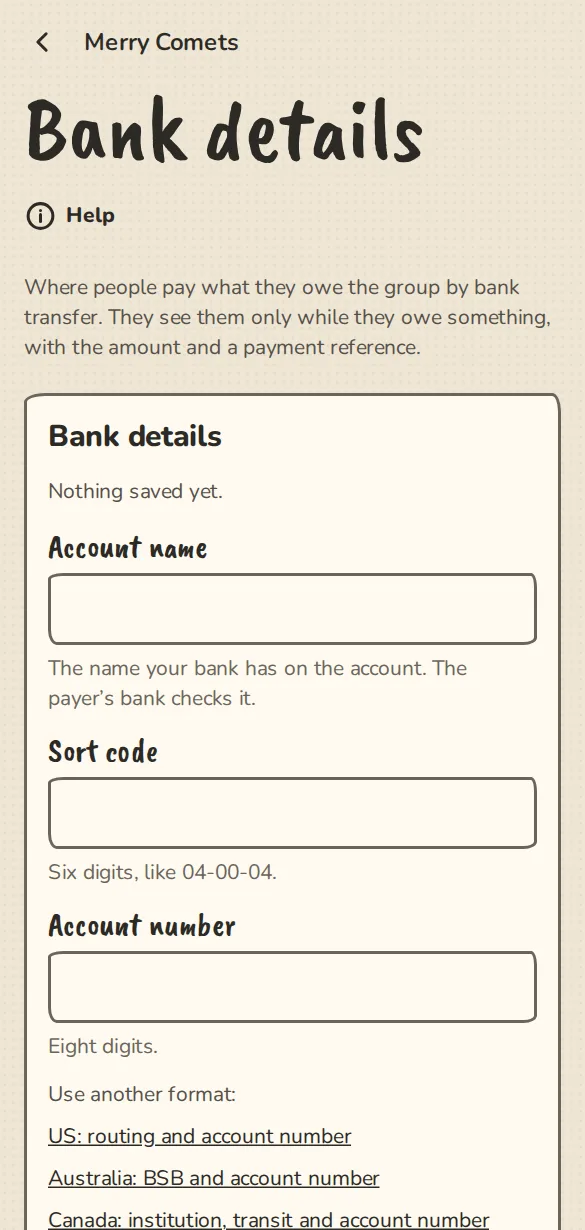
The bank details settings on a phone: account name, sort code and account number, with links to other formats. - 2
The form starts with the format for your group's country: a UK group adds a sort code and an account number, a US group a routing number, account number and account type, an Australian group a BSB and account number, a Canadian group institution, transit and account number, a New Zealand group an account number like 12-3456-7890123-00, and most of Europe an IBAN (plus a BIC if you like). Every format starts with the account name. Numbers are checked as you save.
- 3
Members see them on the Money tab, under Pay, only while they owe the group something. A group without stored details keeps the ask an organiser button.
- 4
Another country, or a different kind of account? Use Use another format under the fields and pick Other: add up to four lines, each with a label (like SWIFT/BIC, Bank name or Branch code) and a value.
Changing them safely
- 1
Changing or removing bank details needs a sign-in from the last 10 minutes. If yours is older, sign in again and come back.
- 2
Every owner and admin is told by email and push when the details change, so a stranger who got into one account cannot change them quietly.
- 3
After a change, people who owe see "These bank details changed: check with the group before paying" and no details at all for 48 hours. Neither the old nor the new details are shown.
Your own details, and a coach's
- 1
Open Settings, then Bank details, to store your own. They are used when a group pays you a fee or pays you back. Coaches add theirs on the coaching settings page.
- 2
An act or a host can also type one-off details for a single fee, on their own fee page. Only the organisers who pay that fee see them, while something is owed.
- 3
Your own details are in Download my data, and are deleted with your account.
Paid, not confirmed, settled
- 1
The person who pays taps I've paid. The person paid taps Received when it arrives, and it is settled. A person paid can also mark it received on their own (cash, or a payment made outside).
- 2
Paid, not confirmed reminds the person paid after 3 days.
- 3
Not received reopens it and tells the other person.
Good to know
What it doesn't do yet
Try it in a sandbox
Make a private copy with made-up people and follow these steps without changing anything real.
Still stuck?
Write to us from the contact page. Say which page you were on and what you tapped.