The jam tools help the host run a jam on the night: draw players into balanced teams, share the performance time between them, run a timer with a bell, and put it all on a projector. If you would rather pull a few names for each scene, there is a "Names in the hat" mode.
Owners, admins and hosts of the group can use them. Teams can also sign up for a slot of their own.
Draw teams
- 1
Open the session page and tap Jam tools at the bottom (owners and admins see the button). There are four tabs: Teams, Running order, Timer and Ideas.
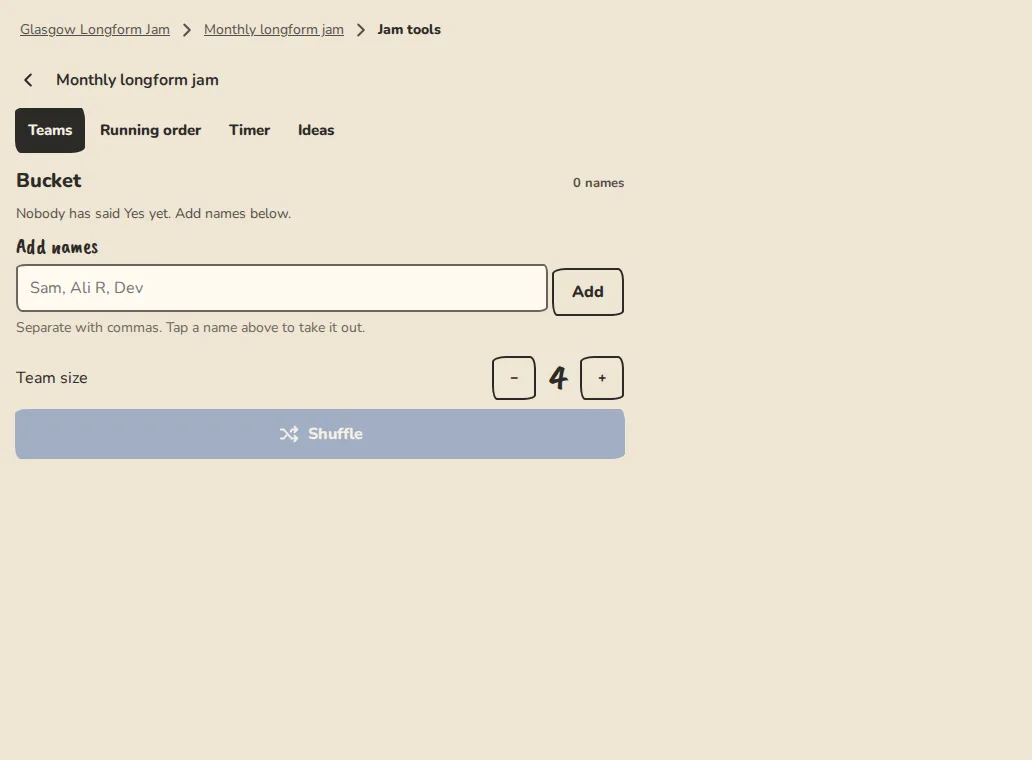
The jam tools on a computer: drawn teams, the running order and the bell timer. - 2
The Bucket starts with everyone who signed up. Tap a name to take it out.
- 3
Add people who just turned up under Add names: type them separated by commas, like Sam, Ali R, Dev, and tap Add. Reset to who said Yes puts the bucket back.
- 4
A new jam aims for teams of 8. Change Aim for teams of with the minus and plus buttons if you like, then tap Shuffle. The teams come out even: 20 people make three teams of 7, 7 and 6, and 9 people make 5 and 4. The line under the buttons shows what you will get.
- 5
If someone turns up after the draw, add them under Someone turned up late?. They join the smallest team without a new shuffle. We start another team only when the room now needs one, and the time is shared again.
- 6
Type a name for each team, or tap Suggest for one. Name the rest fills in the others. Tap Save names.
Running order and timer
- 1
On Running order, set Total performance time (min), Changeover (min) and Start time, then tap Update plan. Each team gets an equal share of the total, less the changeovers between teams, in whole minutes. 90 minutes with 2 minute changeovers and 3 teams is 28 minutes each. Any minutes left over are shown as spare at the end of the show. The times change by themselves when you shuffle again or add a late arrival.
- 2
To give one team a different length, tap Edit on its row and type the minutes. The other teams share what is left. Older jams keep a fixed length for every scene; switch Time for each scene to share the total if you want the new way.
- 3
Drag a scene, or use the up and down buttons, to change the order. Tap Edit on a row to rename it, Skip this scene or Remove. Add a scene puts one At the end or Next up.
- 4
Tap Start timer. Each scene starts with its own share of the time. Use Pause, +1 min, Next scene and Stop and reset as the show goes.
- 5
Tap Sound on once, so the browser lets the bell ring. A warning bell rings 30 seconds before the end and three dings at time. Change both under Timer settings.
Names in the hat
- 1
On the first tab, under How to play, choose Names in the hat. This clears the running order and the clock, and the tab becomes Hat.
- 2
Set Names in each scene (4 to start), Minutes for each scene and, if you want one, a Closing montage of half the names or everyone with its own minutes. Tap Save hat settings.
- 3
Tap Draw the next scene. It pulls that many names that have not played yet, and adds a scene to the running order. When fewer names are left than a scene needs, the rest are topped up from people who have already played. Once everyone has played, the button draws the montage if you chose one.
- 4
On the timer, Next scene draws the next scene for you. The TV view shows who is on now and who is up next. A late arrival goes into the hat; skipping or removing a scene puts its names back.
On a projector
- 1
On the laptop plugged into the projector, sign in as an owner, admin or host, open the jam tools and tap TV view.
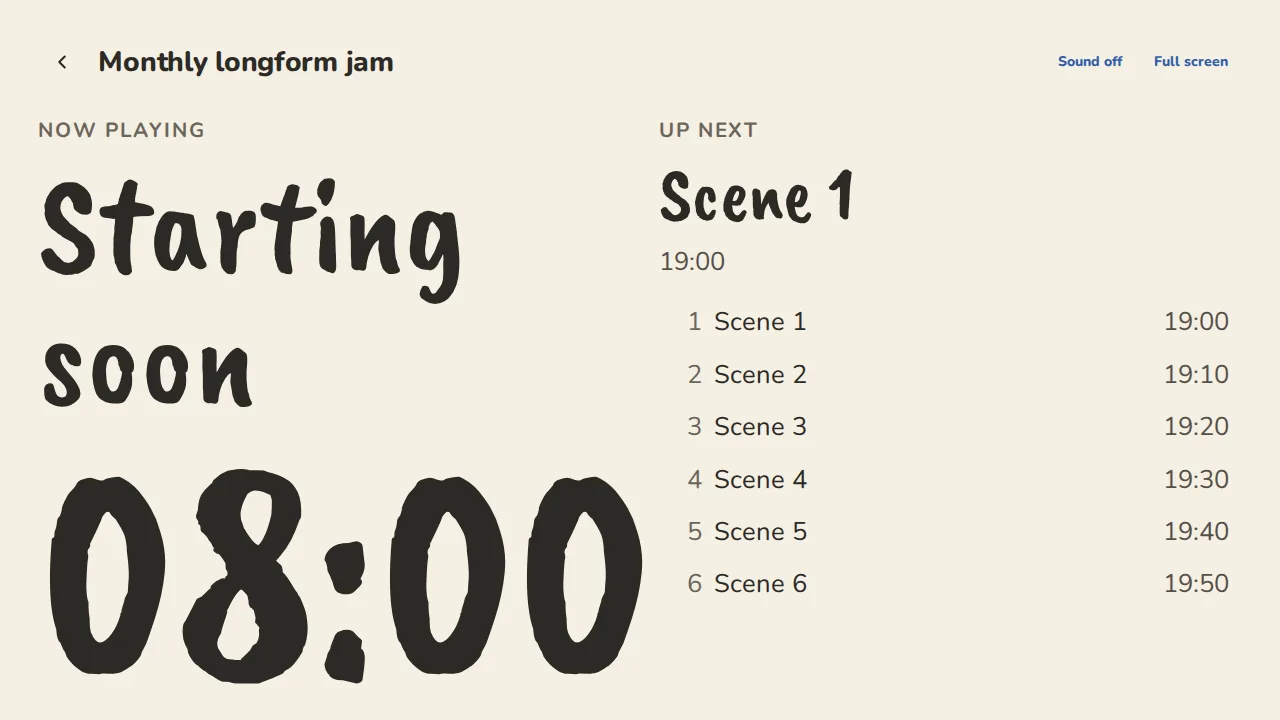
The jam TV view on a big screen: the team on stage, the next team and the timer. - 2
It shows Now playing with a big clock, Up next and the whole running order. It updates every few seconds, so you can run the timer from your phone.
- 3
Tap Full screen. Tap Sound on here too if the bell should come through the room speakers.
- 4
If a Wi-Fi network is saved for the venue, a QR code to join it shows in the corner. Show Wi-Fi QR and Hide QR codes switch it; the buttons fade when the mouse is still.
Team slots at a jam
As well as people signing up one by one, whole teams can book a slot.
- 1
On the session page, tap Team slots. Owners and admins see it.
- 2
Under Let teams sign themselves up, set Slots, Minutes per slot and when sign-up closes (24 hours before the start unless you change it). Tap Turn on team slots.
- 3
Teams sign up on that page, first come, first served. When the slots are full they join a waitlist, and the first team waiting moves in when one withdraws.
- 4
You can reorder the teams, remove one, or Add a team by hand. The session page shows a Team slots block with how many are left.
Good to know
What it doesn't do yet
Try it in a sandbox
Make a private copy with made-up people and follow these steps without changing anything real.
Still stuck?
Write to us from the contact page. Say which page you were on and what you tapped.