An open group runs drop-in sessions that anyone can sign up to. You set how many spots a session has. Once it is full, people join a waitlist that moves up on its own when someone drops out.
The first part is for hosts setting it up. The second is for players signing up.
For hosts: set it up
- 1
Open the Start something page and pick A drop-in group. Give it a name and a city. Start a group
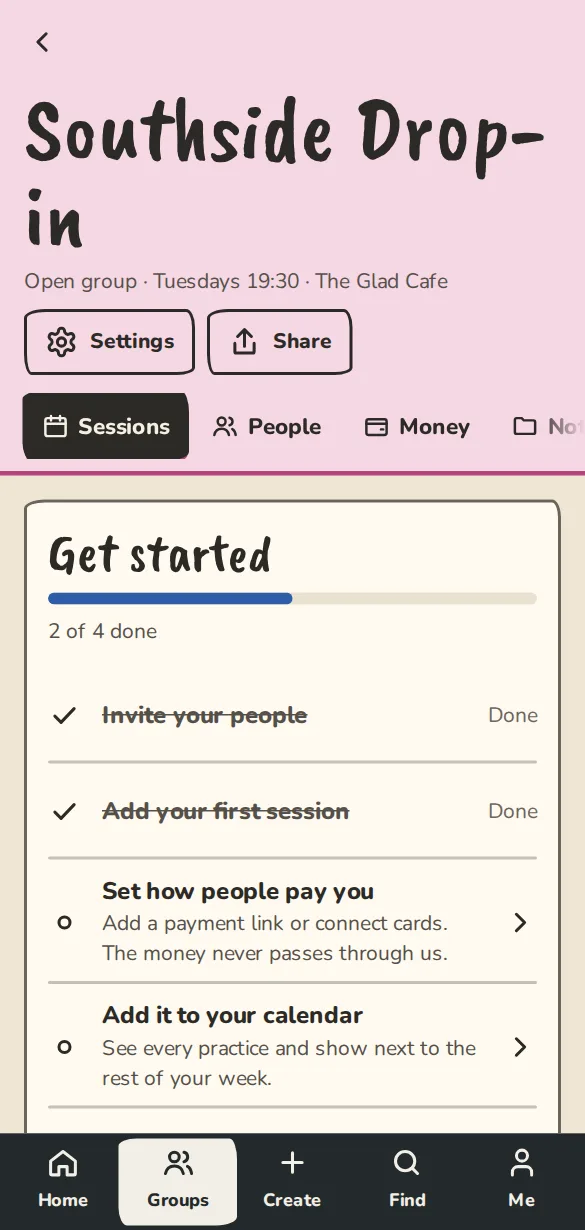
A drop-in group's home on a phone: the next sessions with places left and a Sign up button. - 2
Open Sign-up rules and set Spots per session (leave it blank for no cap), Who can sign up (Public, Link only or Members only) and the Cost. Then tap Create group. You are the host.
- 3
To add a session, tap Create, then Event or practice, and pick the group. The form is headed New session.
- 4
Room holds is the sign-up limit for that one session. If the place is a venue listed on ImprovTeam, we fill in the size of the room; otherwise type how many people the room holds. Sign-ups stop there and the waitlist starts when the room is full. Leave it blank to use the group's usual number.
- 5
For a regular drop-in, set Repeat to Weekly, Every 2 weeks or Monthly (the same date, or the same weekday like the 2nd Tuesday). Say how it ends (after a number of times, or on a date) and add any dates to skip, like a holiday. The next 8 weeks of sessions (3 months for a monthly one) are added straight away, and more keep coming until the end. To skip one later, open that session and choose Skip a date.
- 6
Under Led by, pick who runs it, or choose Nobody yet (a member can take the lead). Members then see Lead this one on the group page.
- 7
To change the usual spots, the cost or who can sign up later, open the group, tap Settings, then Sessions and sign-up.
- 8
To reorder the waitlist, open a session and tap Manage the list (owners, admins and hosts see it until the session starts). Use the arrows beside a name. The next spot that opens goes to whoever is first.
- 9
On the same page, Add someone puts a member of the group, or a name with an optional email, on the list. They are in if there is room, otherwise they join the waitlist at the place you type. They get the usual email, or nothing if you gave no email.
- 10
Put in now puts a waiting person in even when the session is full, and the page says it is over its limit. Remove takes someone off, and the next person waiting moves up.
For players: sign up and drop out
- 1
Open the group page. Each session shows how many spots are left, like 6 of 14 left, or Last spot.
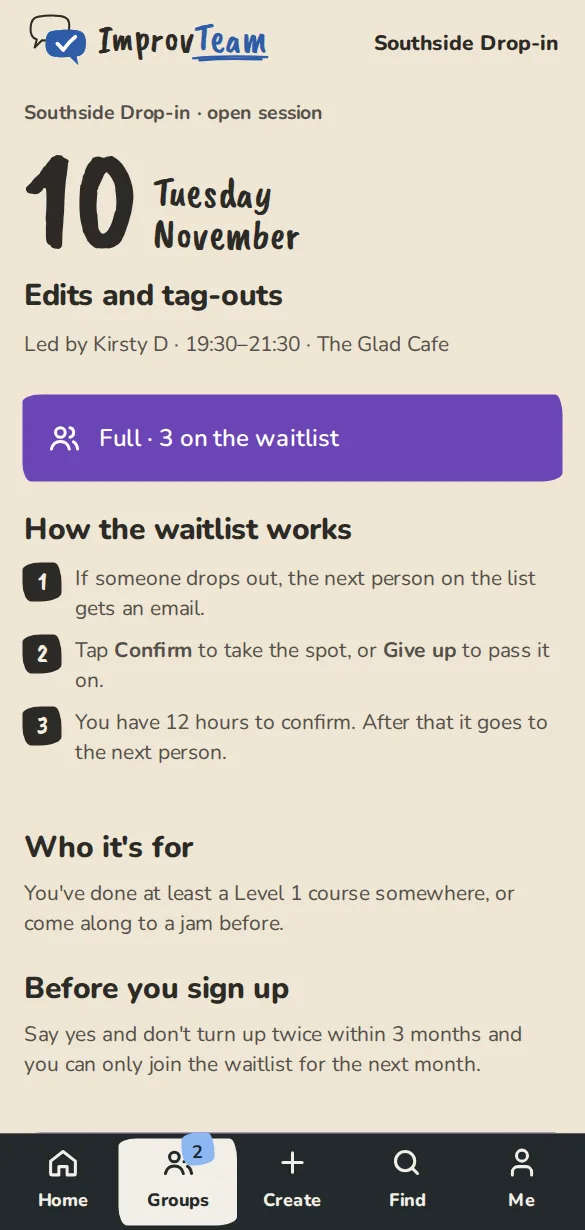
A drop-in session's page on a phone: date, places left and the sign-up button. - 2
Tap Sign up. If you are signed in, that one tap is it. If not, the session page asks for your name and email. If the host wrote terms, you tick them on the session page first.
- 3
If it is full, tap Join waitlist. The session page shows your place, like You're #2 on the waitlist.
- 4
When a spot opens, the next person gets an email: A spot's opened up. Tap Confirm my spot to take it, or Give it up to pass it on. You don't need to log in.
- 5
If you can't make it, tap Drop out in your sign-up email, or Tap to drop out on the group page. Your spot goes straight to the next person waiting.
Good to know
What it doesn't do yet
Try it in a sandbox
Make a private copy with made-up people and follow these steps without changing anything real.
Still stuck?
Write to us from the contact page. Say which page you were on and what you tapped.