Notes are short write-ups after a practice or show: what worked, what to try next, a note from the coach. You choose who can read each one.
Your stats count the shows you played and the practices you came to. Only you and your organisers see them.
Write a note
- 1
Open the event and tap Notes (it says Add a note when there are none yet). Or open the group's Notes tab.
- 2
Type in the Note box. Bold, italic, lists, tick-box tasks, tables and links all work: Formatting help shows how, and Preview shows how it will look.
- 3
Under Who can read it, pick The team, Only me or One person. For one person, choose them under Write to.
- 4
Tap Add note.
- 5
To change it later, tap Edit on your own note. Only the new text is kept, and the note says edited.
Who can read what
- 1
The team: every member of the group.
- 2
The team, from the coach: every member, marked as the coach's note. Only organisers, hosts and whoever leads that event see this choice.
- 3
Only me: you alone, not the organisers either.
- 4
One person: you and the person you pick.
All your notes, and downloads
- 1
Tap Notes in the side bar on a computer, or in the Me tab on a phone, to see every note you can read across your groups. Open all your notes
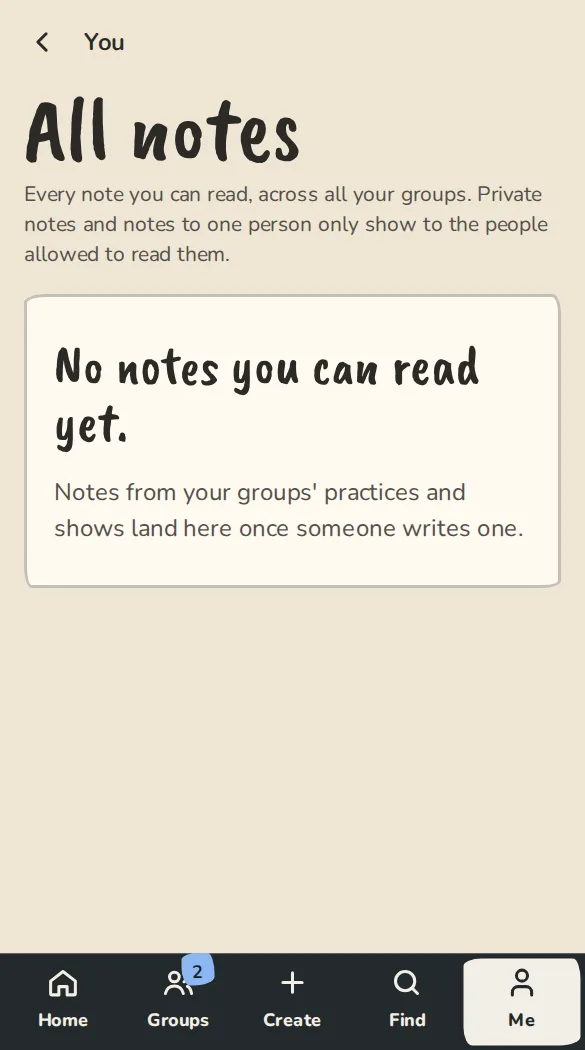
The notes page on a phone, listing notes from recent practices. - 2
Filter by group, event, who wrote it or who can read it, or search, and tap Apply filters. 50 notes show at a time; Older notes shows more.
- 3
To keep a copy, tap Download .md on a note, or tick several and tap Download selected (.zip). Download all matching (.zip) takes up to 2,000.
Your stats
- 1
Open Settings, then Your stats. Open your stats
- 2
Each group shows Shows played, Practices attended, Response rate, Average reply time, No-shows, Last cast and your stage time by month over the last 12 months.
- 3
They are worked out overnight. A group with nothing yet says Calculated overnight. Check back tomorrow.
- 4
How these are worked out at the bottom of the page explains each number.
- 5
Under each group, More about your attendance opens your attendance rate, how often you came when you said yes, and your latest events. Organisers can open the same page for any member from the People tab (tap a name, then Numbers for them); other members cannot.
Good to know
What it doesn't do yet
Try it in a sandbox
Make a private copy with made-up people and follow these steps without changing anything real.
Still stuck?
Write to us from the contact page. Say which page you were on and what you tapped.