The programme grid is where accepted acts become shows. Each festival day is a grid of venues and start times.
On a laptop you drag acts about. On a phone you tap an act, then tap where it goes. Everything you can do on a laptop you can do on a phone.
Place acts
- 1
Open the festival, then Programme, and pick one of the Festival days.
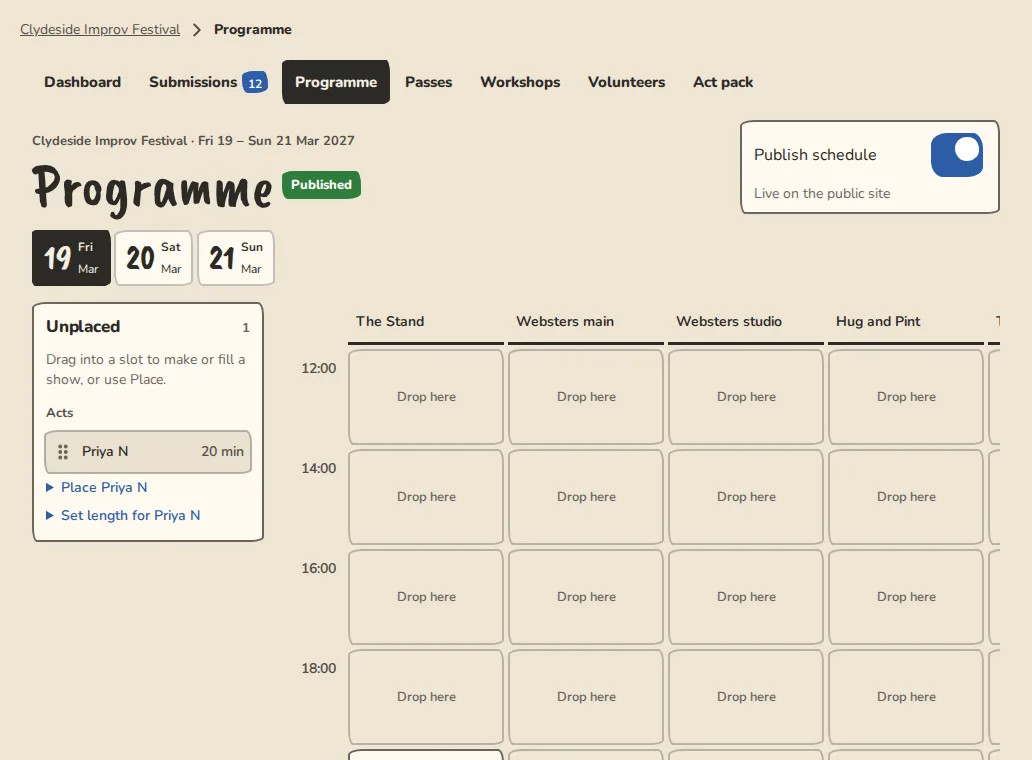
A festival's programme grid on a computer: shows by venue and day with acts placed in them. - 2
Accepted acts and workshops wait under Unplaced. Drag one into an empty slot to make a new show, or onto a show to add it.
- 3
If you'd rather not drag, use Place in… on the act, choose Add to a show or New show at, then tap Place.
- 4
A workshop takes a whole slot, so put it in an empty one.
- 5
Set an act's length in the Unplaced list, from 5 to 90 minutes. Finish times include the changeover between acts (5 minutes until you change it under Programme settings).
Shape the shows
- 1
Use the up and down buttons to set the running order inside a show.
- 2
Pick a Show name (Matinee, Show, Headline, Late, Jam or Mixer) and tap Rename.
- 3
Remove from grid sends an act back to Unplaced. Delete show (acts go back to Unplaced) removes the whole show.
- 4
Close slot marks a slot you won't use.
- 5
Under Edit, set the show's Ticket price (shown on the public schedule) and Seats. A pass takes one seat at every show it covers, so it can't be sold once one of those shows is full. The grid shows how many seats are taken, and the public schedule says Full. Passes you give as comps are not stopped: the grid says Over by when you go past the seats.
- 6
Run sheet opens the show's run sheet, and Door list its door. They have their own guides: The festival run sheet and The festival door.
- 7
Under Edit, Tickets sold elsewhere takes a link to another site (Eventbrite, Ticket Tailor or your own) for that show, and the festival page links there instead of selling here. The same box is on each workshop. Leave it empty and save to sell here again. A show with a ticket price gets a Tickets button that opens a ticket page paid to your own payment, never held by ImprovTeam.
Any start time, stages and several shows
- 1
Shows start when you say. Tap New show at any time, choose a stage, type a start time (19:10 is fine) and tap New show here. Under Edit, Start time and Day move a show you already made.
- 2
A venue can have stages (rooms). Add them in the festival's settings, under the venue. The grid has a column for each stage with its venue named above, and a stage has its venue's address.
- 3
An act can play more than one show. Open Edit on a show it is in, choose Also plays in… and tap Add show. Remove takes it out of that one show only.
- 4
Every change tells the acts it touches, over the next few minutes. An act placed in a show hears You are on the lineup with the day, the venue's address and a map link. An act that moves, or whose slot moves, hears Your slot has changed.
- 5
When a team on ImprovTeam is placed in a show, its players are asked Yes, Maybe or No. Turn that off under Programme settings.
- 6
Programme settings holds the changeover (the gap between acts, and the least a person needs between two shows at one venue) and the travel time (the least between two shows at different venues, 30 minutes to start with).
Clashes and publishing
- 1
The grid marks clashes: the same act twice at overlapping times, a person double-booked, two shows overlapping on one stage, and one person or act in two shows with too little time between them (the travel time between venues, the changeover at one venue).
- 2
Fix every clash first. While one is left, the Go public sheet leaves the schedule out and says how many clashes to fix. With no shows yet it says so and points you to the Programme.
- 3
Open Go public (a button on the Programme and on the dashboard), tick The schedule, and tap the button, which names exactly what happens. The schedule goes live on your festival site, and workshops get their times and a Book button. Take the schedule down on the Programme takes it down again.
- 4
A clash you accept can be marked Known, fine in the Clashes list. It stays listed but no longer stops you publishing. If you move one of its shows it counts as a new clash.
Good to know
What it doesn't do yet
Try it in a sandbox
Make a private copy with made-up people and follow these steps without changing anything real.
Still stuck?
Write to us from the contact page. Say which page you were on and what you tapped.