There are no passwords. You sign in with a 6-digit code we email you, or with a passkey that lives on your phone or laptop.
Logging in and signing up are the same thing. If a team invited you, use the email address the invite went to, and you land straight in the team.
With an email code
- 1
Tap Log in at the top of any page. On a phone, tap Menu first. Open the log-in page
- 2
Type your email address and tap Send me a code.
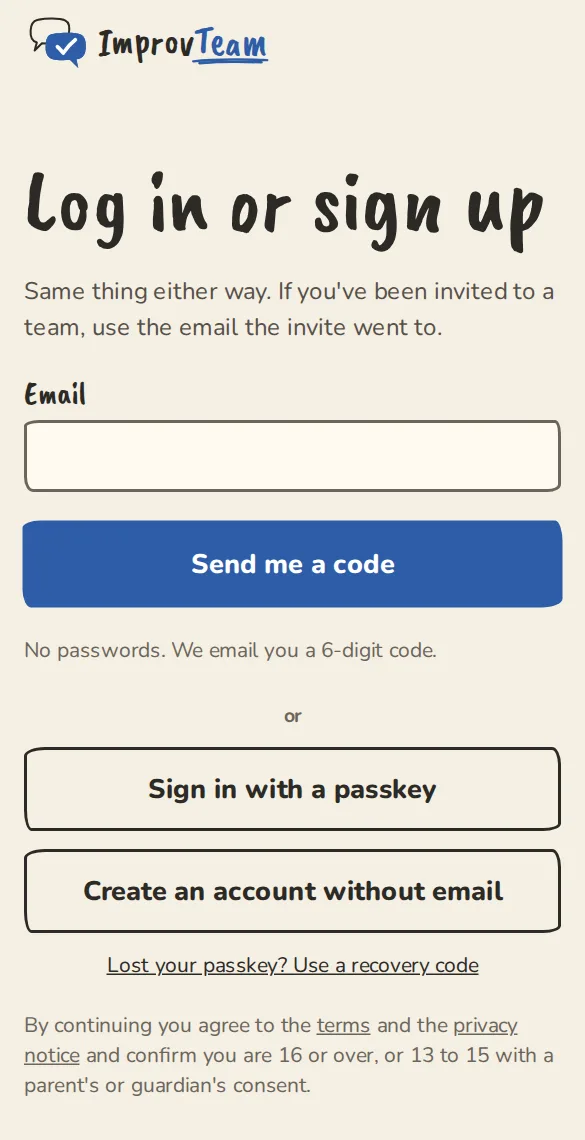
The log-in page on a phone: an Email box, the "Send me a code" button and "Sign in with a passkey". - 3
Open the email from ImprovTeam. The subject starts with the code, so you can often read it from the notification without opening anything.
- 4
Type or paste the 6 digits. You are logged in as soon as the last digit goes in. The code works for 10 minutes.
With a passkey
A passkey is a key that stays on your device and opens with your fingerprint, face or screen lock. We keep only its public half, never your biometrics.
- 1
Sign in once with an email code, then open Settings, then Sign-in and account. Open Sign-in and account
- 2
Under Passkeys, give the device a name you will recognise (Work laptop) and tap Add a passkey. Your phone or browser asks for your fingerprint, face or PIN.
- 3
Next time, tap Sign in with a passkey on the log-in page instead of typing your email.
Signing in to other ImprovTeam apps
Some apps made by ImprovTeam Ltd, such as the Improv MD Toolkit, let you keep one account: tap "Continue with ImprovTeam" in the app. We take you here to sign in the usual way, then back to the app.
- 1
The first time, we show what the app will see: that it is you, and your name. Your email address is only shared if you tick and your email address. It is unticked to begin with. Tap Continue.
- 2
Each app gets its own private ID for you, never your ImprovTeam one, so two apps cannot compare notes about you. We remember your answer, so next time you go straight back.
- 3
To see your apps, open Settings, then Connected apps. Tap Disconnect to sign out of an app everywhere. What you saved in the app stays there: delete it in the app if you want it gone. Open Connected apps
- 4
Deleting your ImprovTeam account signs you out of those apps too, and keeps your data in them.
Linking an app with a code
If an app shows you a short code instead, such as an app installed on a phone, use this.
- 1
Open the link the app shows (improvteam.com/link) on a device you are signed in on, and type the code. Open the link page
- 2
Check the code, the time and the place we show match what you just did. Only tap Yes, link it if you started this yourself. Otherwise tap Cancel.
Without an email address
Email is optional. You can make an account with only a name and a passkey.
- 1
On the log-in page tap Create an account without email.
- 2
Type the name your teams will see and tap Create account with a passkey.
- 3
Save the recovery codes you are shown. Copy them, or tap Download as a text file, then tap I've saved them.
Good to know
What it doesn't do yet
Try it in a sandbox
Make a private copy with made-up people and follow these steps without changing anything real.
Still stuck?
Write to us from the contact page. Say which page you were on and what you tapped.