Build a rota of shifts, share one sign-up link, and volunteers pick their own shifts.
Build the rota
- 1
Open the festival, then Volunteers, and pick one of the Festival days.
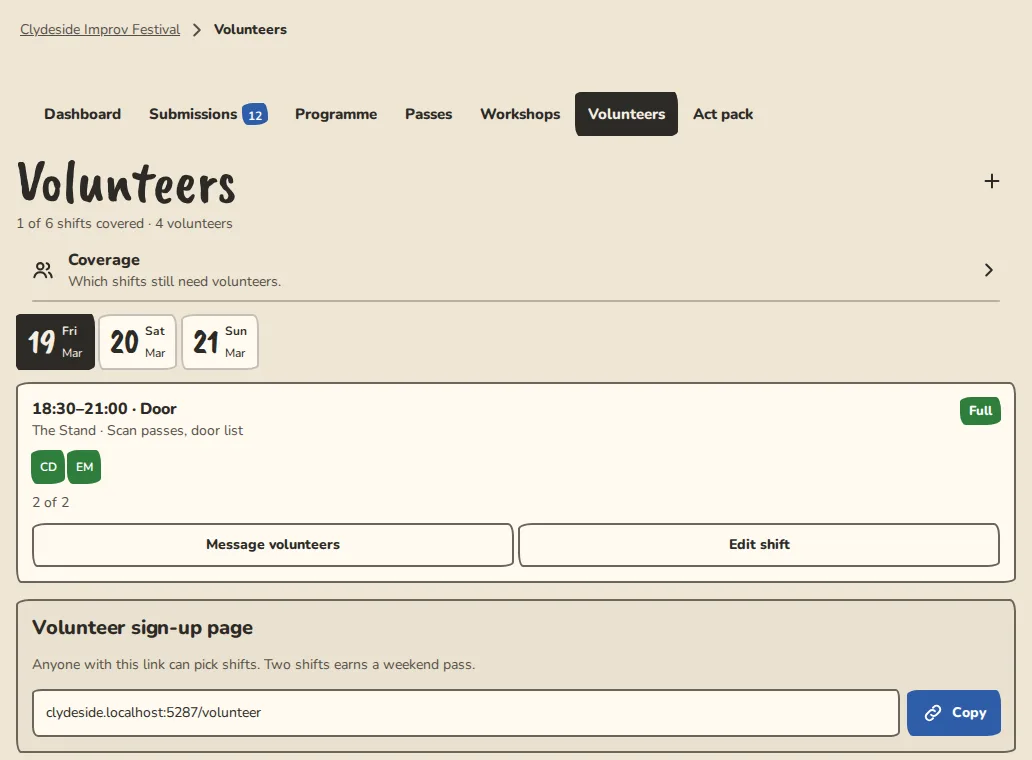
A festival's volunteer rota on a computer: shifts with the people signed up to each. - 2
Tap Add a shift. Fill in Role (Door, Tech, Front of house), Day, Starts, Ends, Spots, Venue and What they will do, then tap Save shift.
- 3
Each shift shows how many are in and how many are waiting. Edit shift changes it, and Remove this shift deletes it.
- 4
Coverage shows which shifts are still short, by role and day.
- 5
A shift can be for a venue or for one of its stages: choose in Venue. Above the shifts, tap a venue to see only its shifts, its stages included.
Volunteers sign up
- 1
Share the Volunteer sign-up page link from the rota. It is also in your festival site's footer as Volunteer with us.
- 2
Volunteers tap Sign up on the shifts they want, add their name and email, and tap the Confirm button. They don't need an account.
- 3
A full shift offers Join waitlist. If a spot opens, the next person moves in and is emailed.
- 4
Each volunteer gets an email for every shift, with a link to swap or drop out.
- 5
If the festival has a weekend pass, every 2 confirmed shifts earn one, sent by email.
Reminders and messages
- 1
From 09:00 the day before, each volunteer gets one reminder per shift with I'll be there and I can't make it. Both work in one tap, without logging in.
- 2
Message volunteers on a shift writes to the people on it. It goes by email or notification, and you never see their addresses.
- 3
On Coverage, Message volunteers sends every volunteer the sign-up link with the open spots listed.
Good to know
What it doesn't do yet
Try it in a sandbox
Make a private copy with made-up people and follow these steps without changing anything real.
Still stuck?
Write to us from the contact page. Say which page you were on and what you tapped.