A camp's schedule is its timetable (meals, workshops, jams, shows and free time, day by day) and a plan for who goes to which workshop. Campers see their own schedule once you publish it. Teachers get a link to their own sessions.
This guide is for organisers of a camp. Campers and teachers need no account: they use the link in their email.
Build the timetable
- 1
Open the camp and tap Timetable. Times are the camp's own, in the camp's time zone.
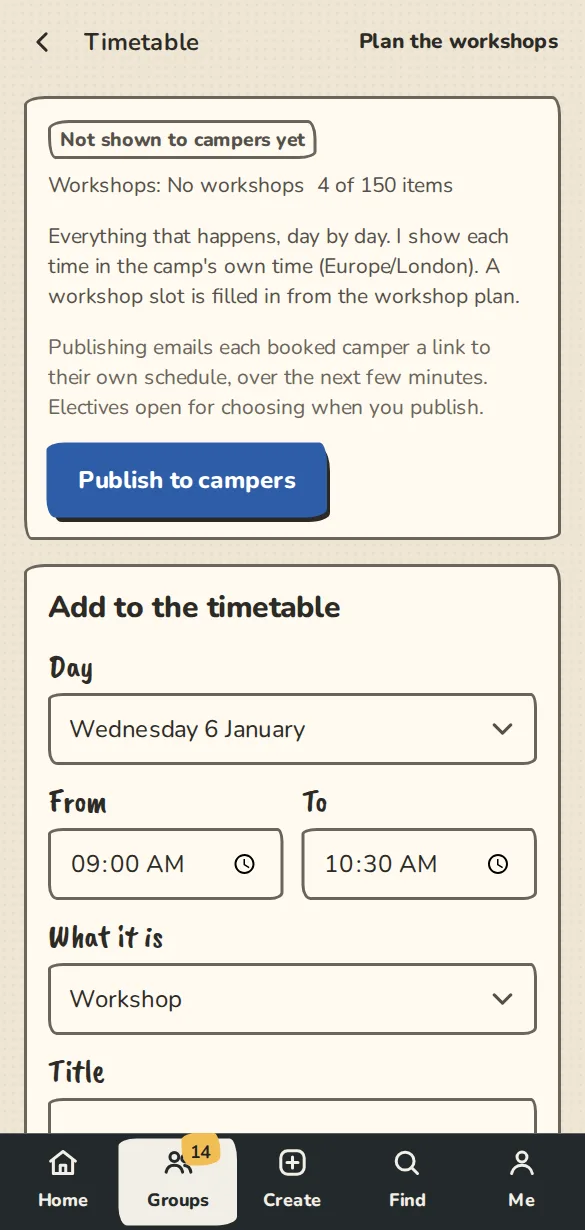
A camp's timetable on a phone: where it stands, then the form to add meals, workshops and shows. - 2
Under Add to the timetable, pick the Day, From and To, say What it is (a workshop, meal, jam, show, free time or other) and give it a Title. A workshop slot can have no title: the workshop names it.
- 3
To repeat a day, tap Copy this day and pick another. It copies the same times and titles, and leaves anything already on the other day. A timetable holds up to 150 items.
- 4
Anything on a day outside the camp's dates is listed so you can move it or take it off.
Choose how workshops run
- 1
Tap Workshops. Under How the workshops run, choose Use this on one of four plans: Rotation, One track, Electives or No workshops.
- 2
Add the workshops under The workshops: a title, the teacher's name (they need no account), a short blurb and a place. Add one for each teacher listed on the camp makes them from the camp's teacher list. A camp holds up to 12.
- 3
Rotation splits campers into balanced groups, one for each workshop, and the groups rotate: each group meets each teacher once. The workshop slots on the timetable are the rounds, so it works best with as many workshop slots as workshops. The page tells you when the numbers do not match.
- 4
One track is one teacher and one workshop for everyone, in every workshop slot. Only the first workshop is used.
- 5
Electives lets each camper pick a workshop for each slot. Tick which workshops a slot offers and give each a cap (empty means no cap). The first to choose get the places and the rest join that workshop's waitlist. When someone changes their choice, or you raise a cap, the next person waiting moves in.
Groups in a rotation
- 1
Tap Update the groups when campers have booked. Campers who joined get a group, people who left are dropped, the sizes are evened out, and nobody else moves. We do not do this on our own as campers book: the page says how many have no group yet.
- 2
Under Keep apart, keep together, add a list of friends who should share a group, or people who should not. We respect the lists when we deal the groups. If a list cannot be kept with those sizes, the page says so.
- 3
To change one camper, use Move a camper or Swap two campers. The sizes may drift after a hand move; the page tells you.
- 4
Deal again from scratch shuffles everyone into new groups and loses hand-made moves, so it asks first.
Publish it
- 1
Tap Publish to campers on the timetable page. Each booked camper is emailed a link to their own schedule over the next few minutes. Electives open for choosing at the same time.
- 2
Each camper's schedule shows their group, track or choices, and the shared items (meals, jams, shows), by day. They can add it to their calendar from the page, and their calendar stays up to date when you change the timetable.
- 3
Take it back hides the schedule from campers again. Publishing after that emails everyone again.
Teachers
- 1
Open a workshop under Workshops and copy its Teacher link. Send it to the teacher only.
- 2
The teacher sees the sessions of their workshop (time, place, which group or Everyone at the camp) and the names of the campers in each, and how many are waiting for an elective. No email addresses.
- 3
If a link gets passed on, tap Make a new link. The old one stops working.
Good to know
What it doesn't do yet
Try it in a sandbox
Make a private copy with made-up people and follow these steps without changing anything real.
Still stuck?
Write to us from the contact page. Say which page you were on and what you tapped.