A theatre or school group is for a place that runs shows, classes, workshops, jams and drop-ins. It has two kinds of people: staff, who run it, and the community, who come along.
Staff are the owner, admins, teachers and anyone you make staff. The community is students, alumni and regulars. They sign up to what they want and are never asked about your rehearsals.
Start a theatre or school
- 1
Open the start page and tap A theatre or school. Start a theatre or school
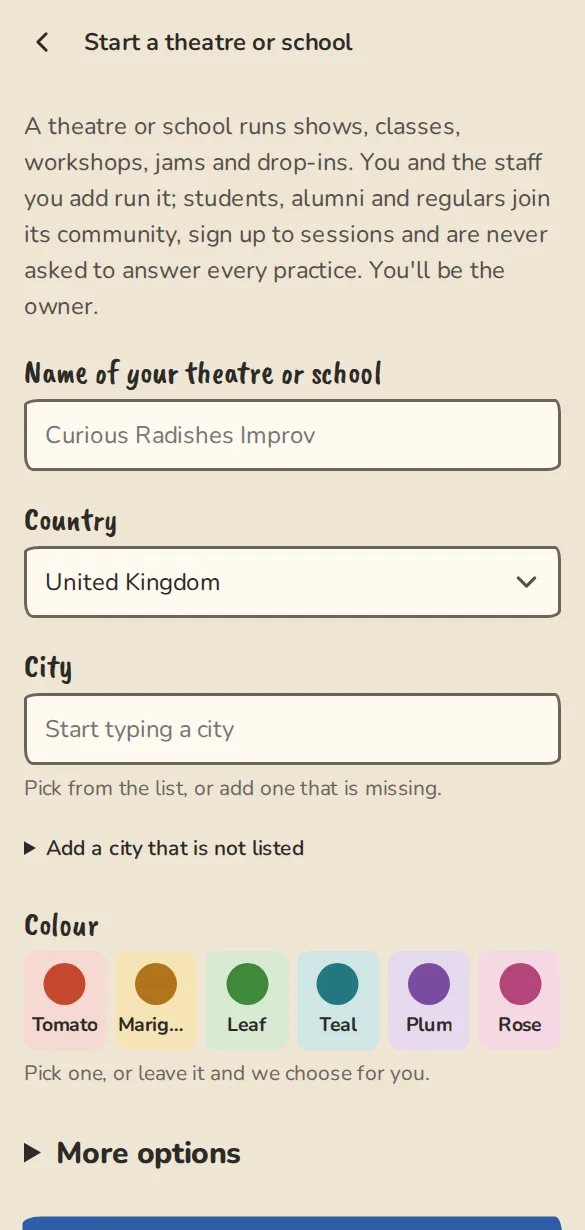
The "Start a group" form on a phone with Theatre or school picked as the kind of group. - 2
Fill in Name of your theatre or school, the country, the city and the currency.
- 3
Who can join starts on Anyone: people who find you join the community with one tap. Pick Ask to join or Invite only if you would rather say yes first.
- 4
Tap Create theatre or school. You are the owner.
- 5
Add your staff. Send them your invite, then open the People tab, tap their name and tap Make staff or Make teacher. Everyone who joins on their own comes in as a community member.
What staff get
- 1
The team tabs: Schedule, Sessions, People, Money, Polls and Notes. Resources, the archive, shows, Courses, Workshops and Auditions are under More.
- 2
Sessions lists the drop-ins and jams the community signs up to. Tap Lead this one to say you are running a session.
- 3
Staff answer Yes, Maybe or No for practices, shows and socials only. Nobody is asked about sessions, workshops or classes.
- 4
When you add an event, Who can see it has two extra choices: Community (staff and community members) and Staff only (never shown to the community).
For community members
- 1
Open the theatre's page and tap Join the community. If it says Ask to join the community, an organiser says yes first.
- 2
You see its public and community shows and sessions. Tap Sign up on a drop-in or jam to take a place. When it is full you join the waitlist.
- 3
You only hear about what you signed up to, with a reminder the day before. Nobody asks you about staff rehearsals.
- 4
You see two tabs: What's on and About. Open About to see the staff and, if the theatre has switched it on, the community list. Tick Show my name on the community list if you want to be on it.
- 5
To leave, open About and tap Leave the community. Courses you are enrolled on carry on, and you can rejoin any time.
Hire out your rooms
A theatre or school that rents its rooms can list them and take requests, the same way a venue does.
- 1
Open the More tab and tap Rooms to hire. Add each room with its capacity, an hourly rate and the hours it can be booked. A day can have two times, such as a morning and an evening: open Two times on one day.
- 2
Once you have a room, Rooms has its own tab and your public page shows Rooms to hire with an Ask to hire a room link.
- 3
A request from a group arrives under Requests (behind More). Confirm or decline it; a group asking for a weekly run sends one request per week and you answer each. A confirmed booking fills in the group's event venue and puts the cost on their Money tab. Nothing is paid through ImprovTeam.
House teams
A house team is a team that performs or rehearses at your theatre. It stays self-run: linking only puts each group on the other's public page.
- 1
In the theatre's Settings, open House teams and tap Invite a team.
- 2
Pick a team from Teams in your city, or paste the address of its page under Or paste a team link. Tap Send invite.
- 3
The team's owners and admins get a message. In their own Settings they open House team and tap Accept or Decline.
- 4
Once accepted, your public page lists the team and theirs says House team at your theatre.
- 5
A house team stays self-run and keeps its own plan. If you choose, you can pay for a team's Plus plan: on the same page, tap Cover this team's plan next to it. Your plan includes 1 covered team on Organisation and 4 on Venue; each further team is added to your bill. Only the owner who pays for your plan can. The team is told, and if you stop (or unlink) it keeps Plus for 30 days.
- 6
Either side can undo it: the theatre taps Unlink (or Withdraw invite before an answer), the team taps Leave next to the theatre's name.
- 7
Next to each active house team you see 3 of the last 10 shows: on how many of the last ten shows at your theatre it played, ran one or presented one. Only your staff see it; the teams never see each other's counts.
Let teams run shows at your theatre
Everything here is off until you switch it on. Each show is its own agreement, and ImprovTeam never holds the money.
- 1
In Settings, open House teams. Under Shows run here by teams, switch on House teams may run their own shows here, Other teams may ask to run a show here, or Accept proposals to link a show to this theatre. Tap Save.
- 2
For each house team, open its Own shows row, tick May run its own shows here and choose whether you approve each show first. You can set a room and hire terms for it, or leave the starting terms.
- 3
A team makes a show At your theatre from its own shows form. If you approve each show, it stays hidden until you say yes; the room is only booked when you agree, and if it was taken meanwhile you are told.
- 4
Open the House shows tool (More tab) to see what waits for you, what is agreed and what you asked teams to run. Open one to agree or decline, move it, cancel it, end the link, or read its door list and wrap-up.
- 5
You can also ask a team to run one of your own shows on your behalf, or propose that a team's public show in your city is listed as presented at your theatre. The team's admins answer. Running a show for you gives them host rights on that one show only.
- 6
On each agreement you choose who takes the ticket money: the team with its own payment settings, or you with yours. Hire terms are a record in the wrap-up: nothing is taken or paid through ImprovTeam.
- 7
Turning a switch off stops new requests and links. Shows, requests and links that already exist stay, and you can still answer the ones waiting.
Good to know
What it doesn't do yet
Try it in a sandbox
Make a private copy with made-up people and follow these steps without changing anything real.
Still stuck?
Write to us from the contact page. Say which page you were on and what you tapped.