A course is a run of weekly classes that people enrol on together, with a set number of places, a waitlist and payment in one go or in instalments.
Teams and theatre or school groups can run courses. Students do not join your group's schedule: each course keeps its own list of students.
Set up a course
- 1
Open the group, then More, then Courses, and tap New course.
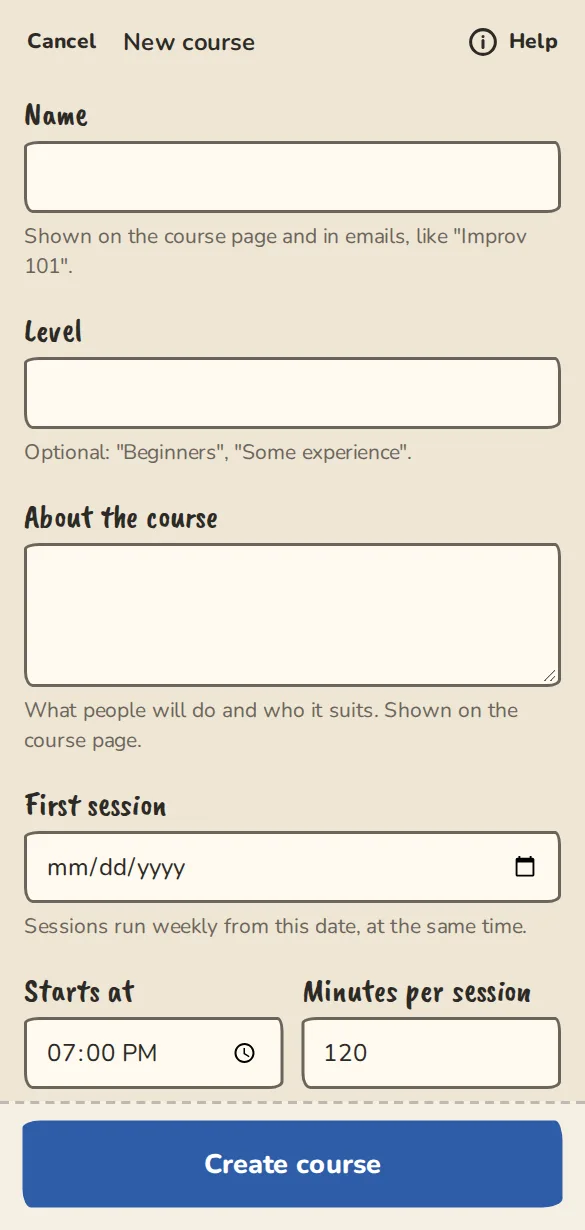
The new course form on a phone: title, level, first session date, number of sessions, places and price. - 2
Give it a Name (like Improv 101), an optional Level and a few lines in About the course.
- 3
Set the First session, Starts at, Minutes per session and Number of sessions. The weekly sessions are made for you.
- 4
Pick the Venue and Instructor. Set the Price for the whole course and Places, or leave them empty for a free course with no limit.
- 5
Under Pay in instalments, choose One payment only or offer up to 3 payments. Add Notes and materials for students if you like, then tap Create course.
- 6
To offer a cheaper place, fill in Concession places, the Concession price and, if you like, What to bring (like a student card at the first class). To offer free places for people who could not otherwise come, fill in Free places. Both come out of your total places, and the course page shows how many of each are left.
- 7
To start selling at a set time, fill in Sales open on with a date and time. Until then the course page shows that time and a Remind me box, nothing can be bought, and everyone who asked for a reminder gets one email when it opens.
- 8
The course starts as a draft only you can see. On its page, tap Open for enrolment, then Copy the course link and share it.
For students
- 1
Open the course link and tap Enrol. Give your name and email, choose how to pay and how many payments, then tap Enrol for the price.
- 2
If it is full, tap Join the waitlist. When a place opens you get an email and the place is held for you for a few hours. Tap Confirm my place to take it. You pay nothing until then.
- 3
Every course email has a button to your course page. It lists the sessions, your payments and the notes. Keep the link: it is how you get back to your course.
- 4
Later payments are asked for by email when they are due. Pay by card or pay the group directly, from the course page.
- 5
You get a reminder the day before each class. If you can't come, tap I can't make this one in the email or on the course page.
- 6
To leave, tap Leave the course on the course page. Payments you have not made are cancelled.
- 7
While a payment is due, a You owe banner on your Home page takes you to your course page to pay it.
The waitlist and messaging a class
- 1
On a full course the waitlist shows in order. Use the arrows beside a name to move someone up or down: the next place that opens goes to whoever is first.
- 2
To put someone on the course yourself, use Add a student. To write to the class, tap Message the class: it opens the message page with the course picked. It goes to everyone with a confirmed place, whether or not they are in your group; turn on Include the waitlist to reach the people waiting too. You see how many it reaches, and the names of anyone it can't reach (no email and no notification), before you send. It goes out over the next few minutes, and students also read it under Messages from your teacher on their own course page, so someone with no email still sees it. The course's teacher can send it too, even if they are not an organiser.
Running it
- 1
The course page shows each student with their payments, the waitlist, and the sessions.
- 2
Students who said they would pay you directly appear under Awaiting payment. Tap Mark paid when the money arrives.
- 3
If a payment is more than 7 days late, the organisers get an email. Nobody is taken off the course for it.
- 4
To change or cancel one class, open it from the course page or the schedule. Students who are coming are emailed.
- 5
Anyone can tap Tell me when the next course opens on your courses page, or on a course that is full or finished, and pick a level if your courses have one. When you tap Open for enrolment on a new course, each of them gets one email over the next few minutes and their address is deleted. Your Courses list shows how many are waiting, never who. Addresses still waiting after 12 months are deleted.
- 6
To put someone on the course yourself, tap Add a student. Pick someone from the group, or type a name and email, then say whether they have paid: Not yet, Yes or Free place. They get the usual You're in email with their course link.
- 7
If the course is full, the form says so. Tick Add them anyway to go over the places.
- 8
Course payments also show in the group's Money tab under Course payments: what is due now, what is still to come and what has been paid. Tap Mark paid there when the money reaches you.
- 9
When someone asks for a free place you get an email, and the request shows under Free place requests on the course page with what they wrote. Tap Approve to give them a free place, or Decline. They are emailed either way. Nothing is held while you decide, and a person you decline can still take a paid place.
Good to know
What it doesn't do yet
Try it in a sandbox
Make a private copy with made-up people and follow these steps without changing anything real.
Still stuck?
Write to us from the contact page. Say which page you were on and what you tapped.