A camp is a residential weekend or week for adults: a place to sleep, meals and teaching for a few days, in one place. A team, a drop-in group, a theatre or school and a festival can each run one. Camps are in person, so every camp needs a location.
Each year is an edition. Last year stays readable, and this year starts from it. ImprovTeam never holds the money: campers pay your group on your own card account, by link, by transfer or in cash.
Want to try this first? A sandbox has made-up people and nothing is sent or charged. How a sandbox works
Make a camp
- 1
Open the More tab and tap Camps, then New camp. Give it a name, dates (up to 21 days), a location and a short description. A festival makes its camps with a button on its dashboard.
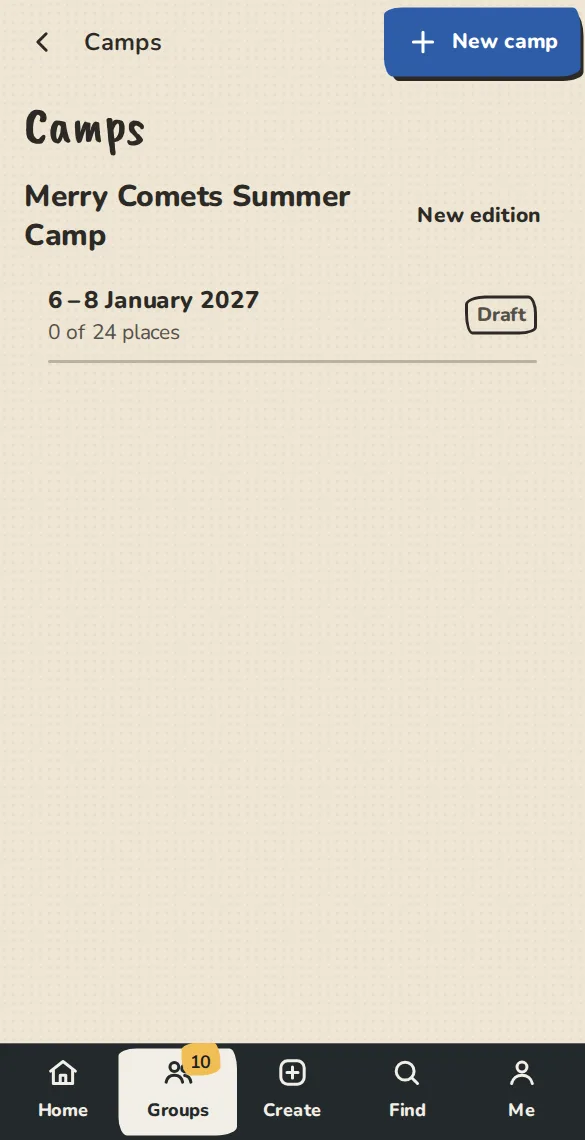
A group's Camps page on a phone, with the camp and the button to make a new one. - 2
Set the price. To take a deposit, add the deposit and the date the balance is due. The camper pays the deposit when they book and the balance by that date. With no deposit, or no balance date, they pay the whole price when they book.
- 3
Set the places. Concession places have their own price, and free places are for people who ask for one. When one kind of place is full, new sign-ups for it join the waitlist, because free places are often not all taken.
- 4
Add the rules you want. Sales open on holds booking until a date. A first-timer window lets returning campers book first. A lottery takes entries until a date and then draws once, fairly, and you can see the record of the draw.
- 5
List the teachers, and tap Open for booking when you are ready. A camp that asks for money needs a way to be paid first (card, a payment link, a transfer or cash on the door); we will say what is missing.
Each year
- 1
Tap New edition on a camp to start the next year. It copies the last one with the dates a year on, and brings no campers, payments or draw.
- 2
A returning camper is someone who had a place in an earlier edition. They are the ones who book first when you use a first-timer window. Once paid plans are on, a camp edition is bought once, for one camp, on the Billing page: it opens making and changing camps until 60 days after the camp ends, and an Organisation plan includes them. Between editions nothing is lost: your camps, campers and payments stay readable.
Open it and tell people
- 1
An open camp has its own page on your group's address, with a link to copy. Tap Promote on the camp to get a news post, a caption and square and story pictures made in your browser.
- 2
Before sales open, the page shows the date and a Remind me box. Each address gets one email when sales open, then we delete it.
- 3
Promo codes work on camps too. Add one under Promo codes and choose Camps; people type it on the camp page. A code that takes off the whole price makes a free place (counted against your free places, if you have any).
- 4
The page has a share picture with the camp's name and dates, and it is in your group's sitemap while it is open.
Campers and money
- 1
The camp page lists who is coming and where each stands on paying. Balances not paid lists who owes something, overdue first (more than 3 days past the date). We never cancel a place for an unpaid balance: you decide.
- 2
Campers get a confirmation, and a reminder 14 and 3 days before the balance date if it is still unpaid. A payment you receive outside the app is marked paid from the camp page.
- 3
To put someone on yourself, tap Add a camper: pick a member or type a name and email, and say if they have paid, not yet, or have a free place. If the camp is full you can add them anyway by ticking the box.
- 4
When a place opens, the next person waiting is invited and holds it for a set number of hours. If they do not book, it goes to the next.
Rooms
Say what kinds of room campers can choose, make the rooms, then put each camper in one.
- 1
On the camp page, tap Set up rooms on the Rooms card. Under Room types, add what a camper picks when they book: a shared cabin, a single-sex cabin on request, or a private room. A type can have a number of places and an extra price, which goes on the deposit and the balance.
- 2
Under The rooms, add each cabin or room with its type and number of beds. Then open the room board and drag each camper into a room. On a phone, use the Move to menu under their name. A room cannot hold more campers than it has beds.
- 3
The board shows who asked to share with whom and who is not placed together yet. When a type with an extra price is full, campers can join its standby list, and you give them a place when one frees up.
- 4
Campers cannot see their room until you tap Publish the room list. We then email each camper who is in a room. Anyone you move after that is told.
Before and during camp
The camp page has "Before camp", "Check-in" and "Name badges" for the time around the camp.
- 1
Under Before camp, add the arrival, travel and packing notes. Booked campers see them on their camp page.
- 2
ImprovTeam holds no health, dietary or access details. Instead, paste a link to your own form (any https form tool), say the date campers should send theirs by, and optionally give an email for people who would rather write to you. You are responsible for that form.
- 3
Each camper ticks I've sent them and you tick Mark received when you have theirs. We remind campers who have not ticked 14 and 3 days before the date. Nothing they send is stored here.
- 4
Campers can use a ride board to offer or ask for a lift (a town or station, never an address), and can choose to appear on a list of campers.
- 5
On the day, Check-in scans each camper's check-in code and Name badges prints one badge for each booked camper.
- 6
Feedback opens for campers on the first day of camp, and a certificate of attendance when it ends. You see the average and what they wrote, without names.
Good to know
What it doesn't do yet
Try it in a sandbox
Make a private copy with made-up people and follow these steps without changing anything real.
Still stuck?
Write to us from the contact page. Say which page you were on and what you tapped.