The Money tab keeps track of who owes what: the coach, the room, the props. Add a cost, split it, and tick people off as they pay. ImprovTeam never holds the money: people pay you or the team directly.
Add a cost and split it
- 1
Open the team, then the Money tab, and tap Cost.
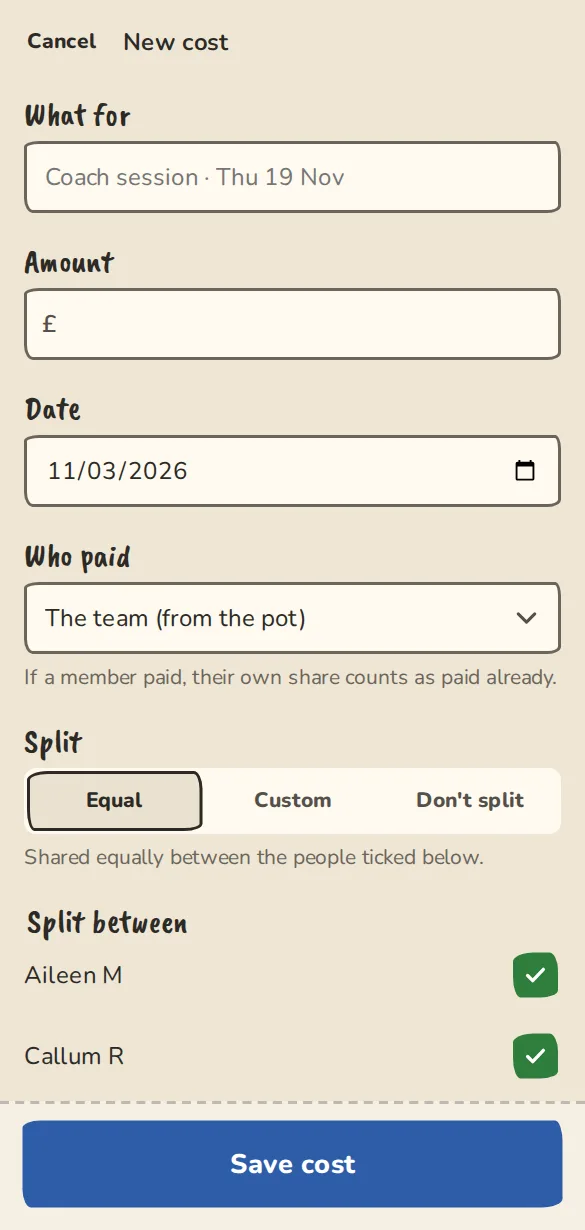
The new cost form on a phone: what it was for, the amount and who shares it. - 2
Fill in What for (like Coach session, Thu 19 Nov), the Amount and the Date.
- 3
Under Who paid, pick the member who paid, or The team (from the pot). A member's own share counts as paid already.
- 4
Choose the Split: Equal between the people you tick under Split between, Custom amounts that add up to the total, or Don't split for something paid from subs.
- 5
Leave Email each person what they owe ticked and tap Save cost.
Who pays a share of a cost
- 1
The first time your group adds a cost, we ask once who pays a share of it: the people who came, everyone who said Yes when answers locked (so a no-show or a late drop-out still pays), or everyone in the group.
- 2
Open Settings, then Answers, costs and terms, to change it later. Groups that were here before this choice stay on People who came.
- 3
On the same page you set when answers lock (0 to 72 hours before the start, 12 unless you change it) and can write your own terms. Members tick to accept when they join, and again only when the words, the cost choice or the lock time change.
- 4
On an event page you can change anybody's answer, and the list under it shows every change and every late drop-out.
Monthly subs
- 1
Open Settings, then Name, city and currency.
- 2
Under How costs work choose Both: monthly subs and split costs and type the Monthly sub.
- 3
Everyone gets a row each month on the Money tab under Subs by month, and a reminder on the 1st from 09:00.
Reminders and marking paid
- 1
Tap Remind everyone who owes, then Send reminders. Everyone with an unpaid sub or share gets an email or notification with what they owe and how to pay. You can send reminders once a day.
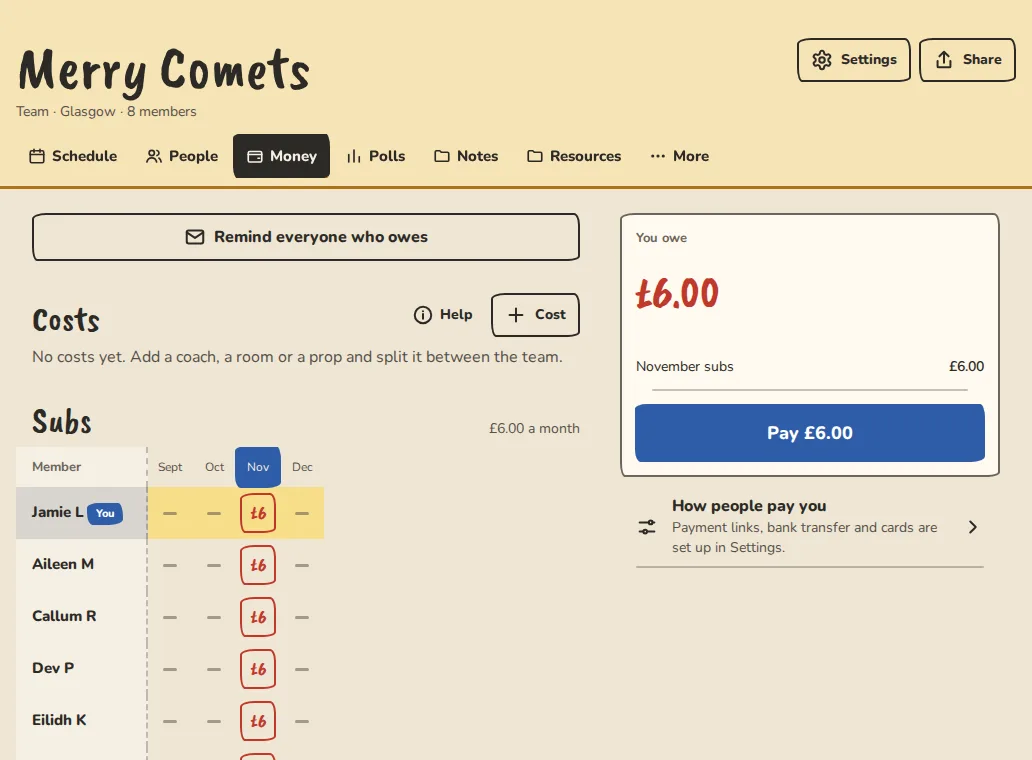
A team's Money tab on a computer: who owes what, the costs with their shares, and the Remind button. - 2
To mark one share paid, open the cost and tap Mark paid next to the person. Pick how they paid and the date. Their reminders stop.
- 3
For subs, tap a red or outlined cell in Subs by month to mark that month paid.
- 4
When someone taps I've paid, it shows under To confirm at the top of the Money tab. Tap Confirm paid, or Not received if it never arrived.
Good to know
What it doesn't do yet
Try it in a sandbox
Make a private copy with made-up people and follow these steps without changing anything real.
Still stuck?
Write to us from the contact page. Say which page you were on and what you tapped.