How people get into your team, what each role can do, and how to take someone off the list. For owners and admins.
Invite people
- 1
Open the team, then the People tab, and tap Invite.
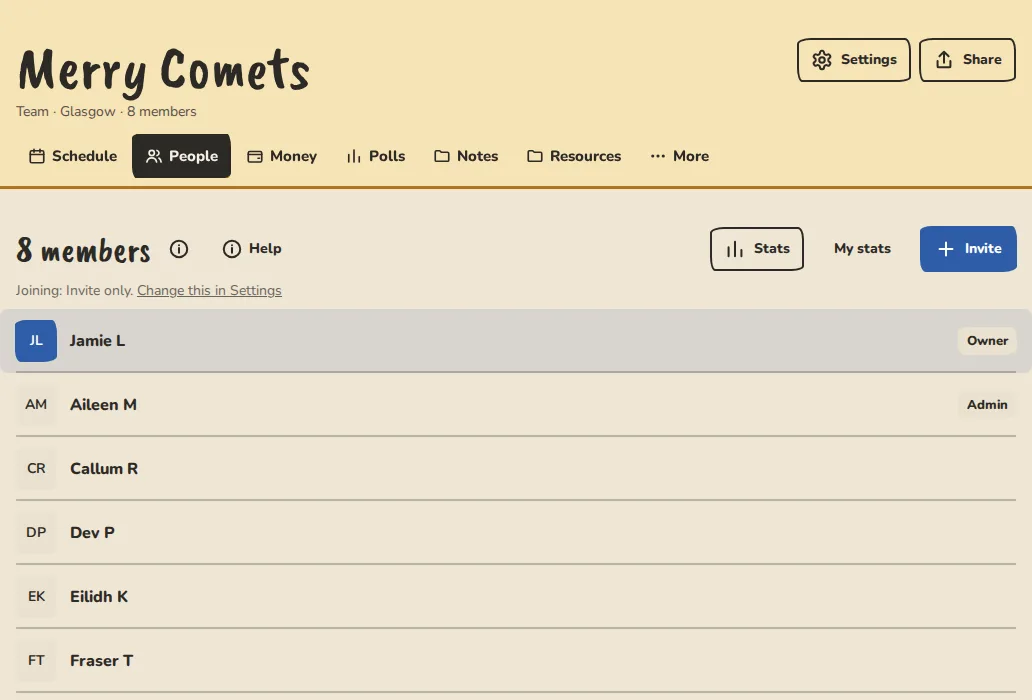
A team's People tab on a computer: the members with their roles and the invite link. - 2
To send emails, type the addresses under Email addresses (commas or new lines, up to 25 at a time), choose Join as Member or Admin, add a personal note if you like (it appears in the email and on the page the link opens), and tap Send invites.
- 3
Or copy the invite link under Or share a link and paste it in the group chat. Whoever opens it joins in a couple of taps, without a password.
- 4
Invites wait under Pending invites until they are used. Tap Resend to send one again, or the cross to cancel it.
- 5
If the link has got out, tap Make a new link (the old one stops working).
Choose who can join
An invite link always works, whatever you choose here.
- 1
Open Settings, then Joining.
- 2
Invite only: there is no join or ask button anywhere. New teams start here.
- 3
Ask to join: people tap Ask to join on your team page, and every owner and admin gets an email saying who wants in, with an Add button for that person.
- 4
Anyone: anyone who finds the team joins with one tap and is a member straight away.
- 5
Tap Save joining.
What each role can do
- 1
Owner: one person. Everything an admin can do, plus where payments go, making someone else owner and deleting the group.
- 2
Admin: runs the group. Adds events, polls and costs, changes settings, invites people, and leads sessions by default.
- 3
Host: can lead a session and take attendance, without running the group.
- 4
Member: plays, answers Yes, Maybe or No, votes and pays their share.
- 5
Non-playing: a coach, director or tech. They see the schedule and get the emails, but are left out of lineup suggestions.
- 6
To change a role, tap the person on the People tab and pick Make admin, Make host, Make member or Make non-playing.
- 7
With more than 15 people, a search box and a Role filter appear above the list. Search finds people by name, and the link you get can be shared.
Remove someone
- 1
On the People tab, tap the person.
- 2
Tap Remove from team, then the red button with their name.
- 3
They lose access to the schedule and stop getting emails. Their past answers stay, and you can invite them back later.
Good to know
Try it in a sandbox
Make a private copy with made-up people and follow these steps without changing anything real.
Still stuck?
Write to us from the contact page. Say which page you were on and what you tapped.