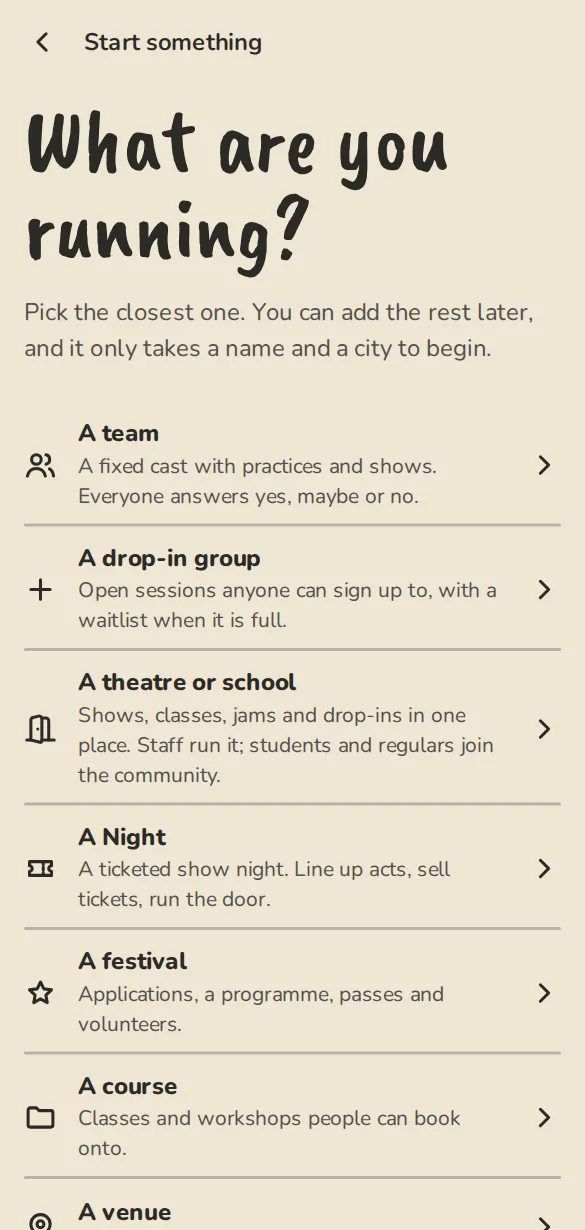
A team is a fixed cast with practices and shows. Everyone answers Yes, Maybe or No. Starting one takes a name, a country and a city, and you are its owner straight away.
This guide is for whoever sets the team up. Players join later with your invite link.
Start the team
- 1
Tap Create in the side bar (on a phone, the Create tab), then Team. Or open the start page and pick A team. Open the start page
The "Start a group" form on a phone: name, web address, kind of group and city. - 2
Type the Team name, like Rusty Magpies.
- 3
Pick your Country. It sets the list of cities and the usual currency.
- 4
Start typing in City and pick your town or city from the list; it shows the region and country so two towns with one name are easy to tell apart. If it isn't there, open Can't find your town? Add it and type its name.
- 5
Pick a Colour if you like. Leave it and one is chosen for you.
- 6
Open More options to check three things: the Web address (made from the name, like late-arrivals.improvteam.com), Who can join (new teams start Invite only) and the Currency.
- 7
Tap Create team. You land on the team's page with a Get started card: invite your people, add your first practice or show, set how people pay you.
The settings worth a look
Settings is one list. Each row says how it is set right now, and tapping it opens a short page with one Save button.
- 1
Open the team and tap Settings in the team header.
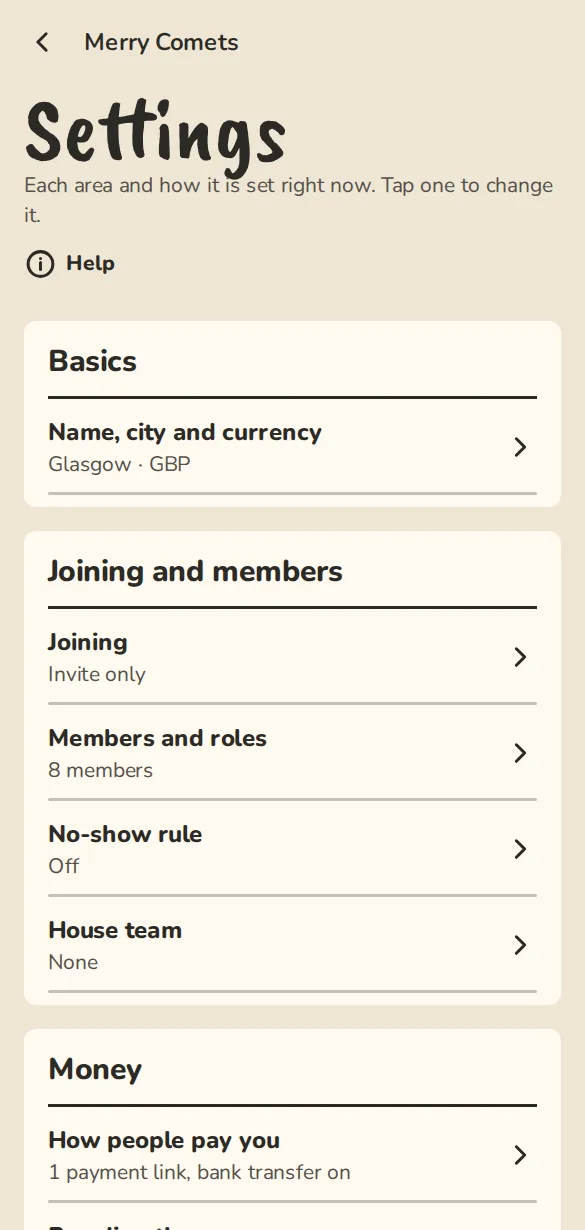
A team's settings on a phone: a list of short pages, each showing its current value. - 2
Name, city and currency holds the name, web address, country, city and currency, plus Who can see the schedule (Public or Members only), How costs work and a Default venue.
- 3
Joining decides whether people need your invite link, can ask to join, or can join with one tap.
- 4
How people pay you holds your payment links, bank transfer and card payments.
- 5
Import from a spreadsheet brings in events or members from an old Google Sheet saved as a CSV file.
- 6
Group chat link, Chat posts and Calendar feed and sharing connect the team to the chats and calendars it already uses.
Good to know
What it doesn't do yet
Try it in a sandbox
Make a private copy with made-up people and follow these steps without changing anything real.
Still stuck?
Write to us from the contact page. Say which page you were on and what you tapped.