Practices, shows and socials go on the Schedule. Everyone gets an email with Yes, Maybe and No buttons and answers in one tap. For owners and admins.
Put an event in
- 1
Open the team. On the Schedule tab, tap New event.
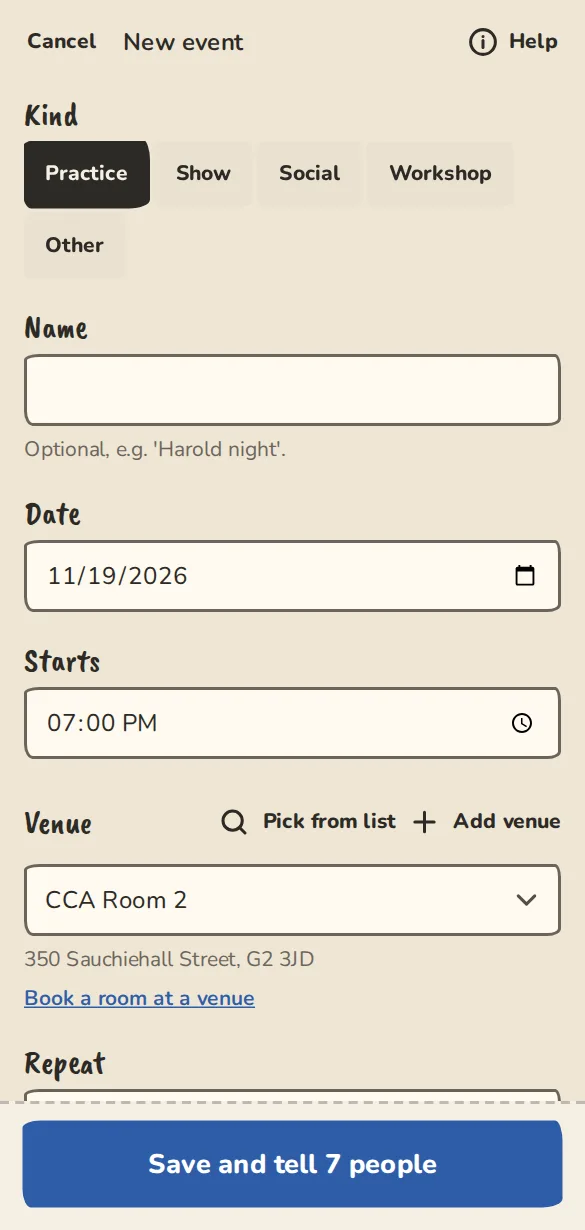
The new event form on a phone: the kind of event, date, start and end times and the venue. - 2
Pick the Kind: Practice, Show, Social, Workshop or Other. A Name is optional, like Harold night.
- 3
Set the Date and the time it Starts.
- 4
Choose a Location: tap one you have used before, or add a new one by typing an address (suggestions appear as you type), pasting a Google, Apple or OpenStreetMap link, or choosing Online and adding the meeting link. Every event needs one. New places are saved for next time.
- 5
For a show, set Cast needed. The show is flagged if fewer people than that say yes.
- 6
Open More options for the Call time, Doors (optional) for a show, Who can see it, who it is Led by, and a Note for the cast.
- 7
In More options (and in the show and course forms) tick what this date offers under Access for this date: relaxed performance, BSL interpreted, captioned, assistance dogs welcome, and a short note. It shows with the venue's access facts on the public page, as stated by you.
- 8
Tap the save button. It says who will hear about it, like Save and tell 7 people. The emails go out over the next few minutes.
Repeat it every week or every month
- 1
When you add a new event, set Repeat to Weekly, Every 2 weeks or Monthly.
- 2
For Monthly, pick Which day each month: the same date (like the 14th) or the same weekday (like the 2nd Tuesday, or the last Friday). Months without that date are skipped.
- 3
Saving makes this one and the dates for the next 8 weeks (3 months for a monthly one), then keeps adding more as time passes, until the end you chose (after a number of times, or on a date). Skip a holiday when you make it, or later with Skip a date in the options menu of that event.
- 4
Each date is its own event, so you can edit or cancel one without touching the rest. The event page says how it repeats, like Every second Tuesday, 12 times.
Reminders and nudges
- 1
Three days before a show, from 09:00 in the event's time zone, anyone who hasn't answered gets a nudge.
- 2
The day before any event, people who said Yes or Maybe get a reminder.
- 3
To nudge someone yourself, open the event and tap Nudge next to their name under no reply.
- 4
Organisers also get one message two days before each practice or show listing, by name, who has not answered, with a Nudge all button. Turn it off for yourself under Settings, Notifications, or for the whole group in the group's settings.
Change, cancel or delete
- 1
Open the event and tap Actions (on a phone, the three dots), then Edit event.
- 2
Save with Save and tell to email everyone, or Save without telling anyone for a typo.
- 3
To call it off, choose Cancel event. The people who said yes get an email straight away. Tick Also email people who said maybe to tell them too.
- 4
Choose Delete for an event nobody has answered, signed up to or paid for. If they have, it is cancelled instead, so nobody loses what they did.
- 5
For a repeating event, Delete asks which sessions: This session, This and following or All future sessions.
Good to know
What it doesn't do yet
Try it in a sandbox
Make a private copy with made-up people and follow these steps without changing anything real.
Still stuck?
Write to us from the contact page. Say which page you were on and what you tapped.