Tell members how to pay you: payment links, bank transfer by reference, or cards through your own Stripe account. The money goes straight to you. ImprovTeam never holds it or stores bank details.
Only the team's owner can change where payments go.
Payment links
- 1
Open the team, tap Settings, then How people pay you.
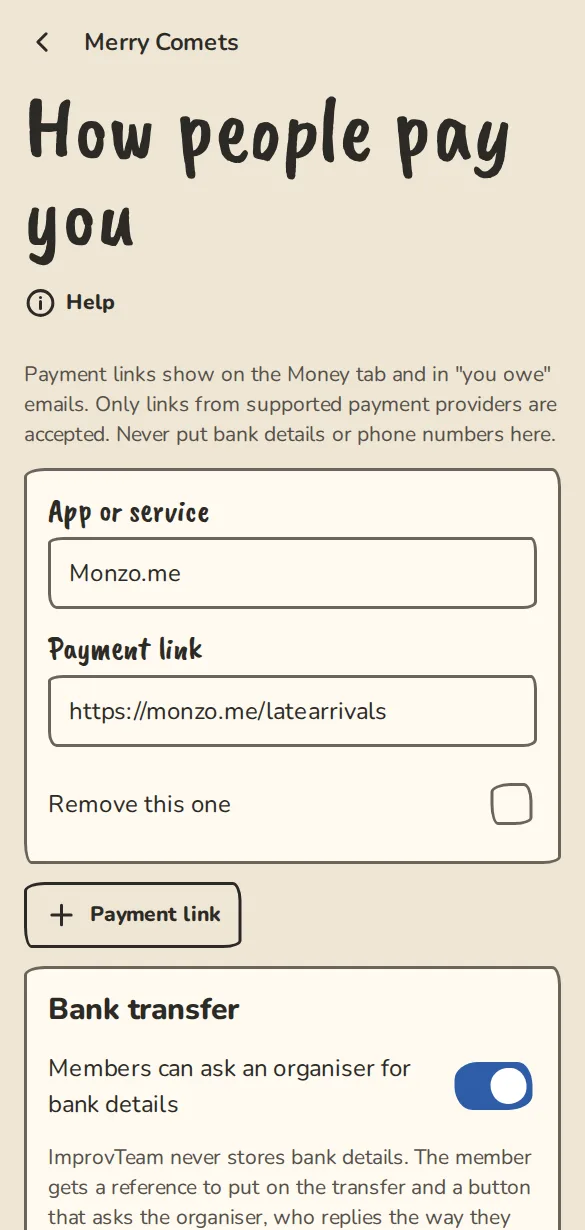
The "How people pay you" settings on a phone: payment links and bank transfer by reference. - 2
Under App or service pick one, like Monzo.me, PayPal.me, Revolut, Wise, Starling Settle Up, Venmo, Cash App, Tikkie, bunq.me or a Stripe Payment Link.
- 3
Paste your own link under Payment link. It has to start with https:// and come from a supported provider.
- 4
Tap Payment link to add another, then Save changes. Members see the links on the Money tab and in you owe emails.
Bank transfer by reference
Members ask an organiser for bank details with a button on the Money tab.
- 1
On the same page, under Bank transfer, switch on Members can ask an organiser for bank details.
- 2
Under Who answers the requests, tick the organisers who will reply, and save.
- 3
A member paying by transfer sees the amount and a reference like IT-7K2QM, and taps the Ask ... for bank details button with your name on it.
- 4
You see the request under Asked for your bank details on the Money tab. Reply the way you normally do, in the group chat or a message.
Card payments with Stripe
This is optional. A team that never sells anything never needs Stripe.
- 1
On How people pay you, find Take card payments (optional) and tap Connect Stripe, then Continue to Stripe.
- 2
Finish the short set-up on Stripe's site. It is your own Stripe account, and Stripe pays you out to your bank.
- 3
Back here it says Connected. Members now see Pay by card on the Money tab and pay exactly the price shown. Stripe takes its own fee from your account.
- 4
Payouts, refunds and disputes are handled in your Stripe dashboard (Manage in Stripe). Card payments to the team are listed under Subs and cost card payments on the Money tab.
Tickets and workshops paid to you directly
- 1
Open Settings, then Pay directly.
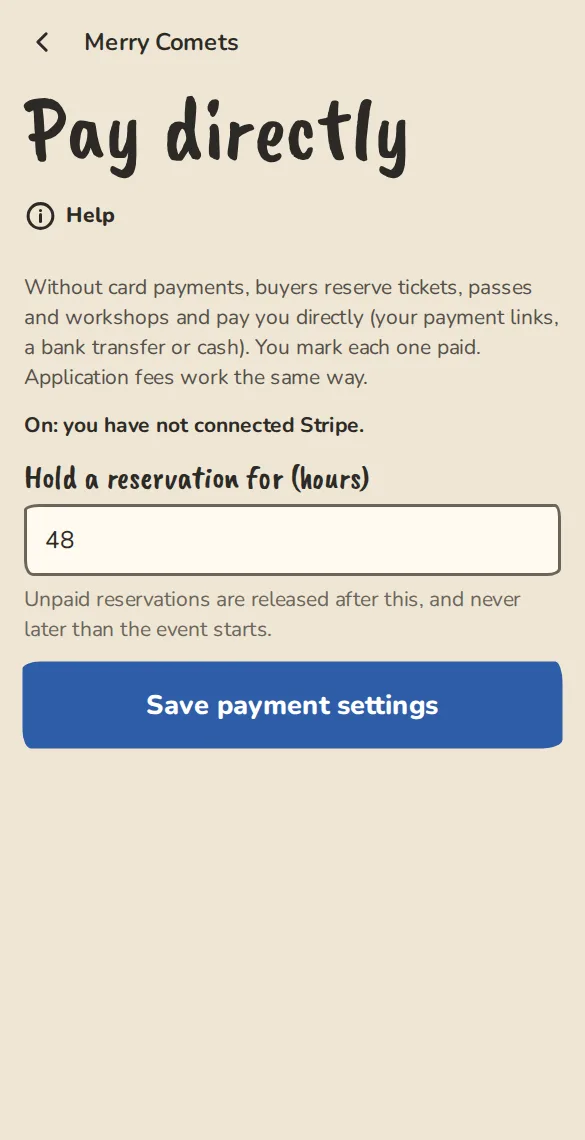
The "Pay the group directly" settings on a phone: the switch and how long a reservation is held. - 2
Without Stripe this is always on: buyers reserve a ticket, pass or workshop place and pay you by link, transfer or cash. With Stripe, tick Also accept payment directly to offer both.
- 3
Set Hold a reservation for (hours). Unpaid reservations are released after that, and never later than the event starts.
Good to know
What it doesn't do yet
Try it in a sandbox
Make a private copy with made-up people and follow these steps without changing anything real.
Still stuck?
Write to us from the contact page. Say which page you were on and what you tapped.