Discussion is a tab where a theatre's community and staff talk in threads, in place of a Facebook group. People ask about a show, find others for a jam or share a workshop they liked.
It is for theatre and school groups only, and it is off until you turn it on. Only people signed in can read it. Nobody outside the theatre sees it, and search engines are told to leave it alone.
Turn it on
- 1
Owners and admins: open the theatre's Settings, then Discussion, and tick Discussion is on. Turning it off hides the tab; the threads stay until you turn it on again.
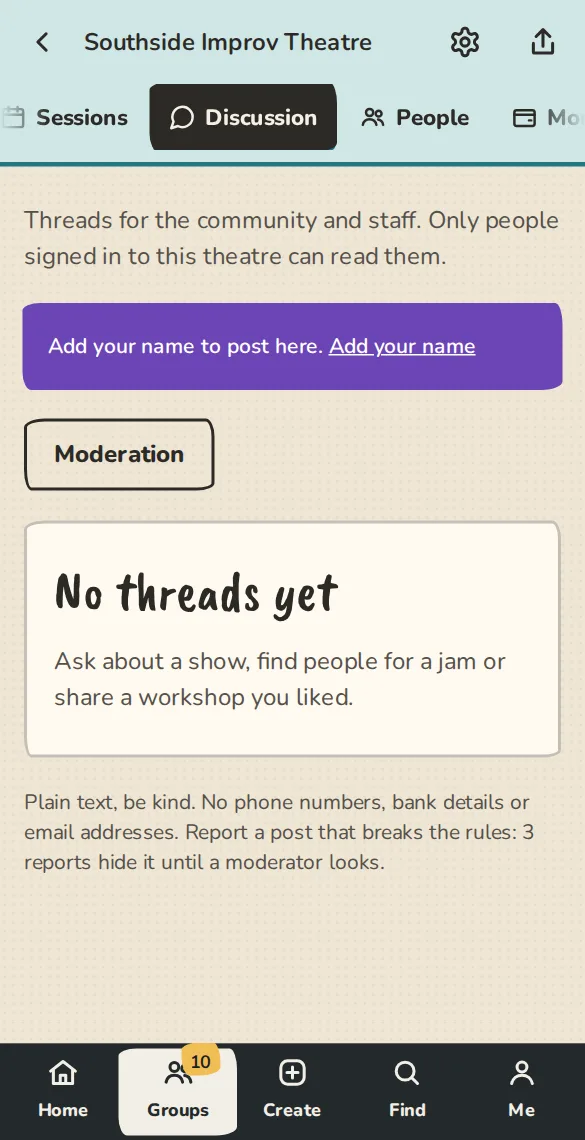
A theatre's Discussion tab on a phone, with the button to start a thread. - 2
Under Who can read and post choose Community and staff (members of this theatre only) or Anyone signed in (anyone with an account). Tap Save.
Start a thread and reply
- 1
Open the Discussion tab and tap Start a thread. Give it a Title and write what you want to say. Plain text only.
- 2
Tap a thread to read it and reply. Quote puts a post you are replying to under yours. Follow tells you about new replies, at most once an hour. Mute stops that.
- 3
You can edit or remove your own posts. An edited post says edited. You need a name on your profile to post.
The rules and keeping it safe
- 1
Posts can have up to 3 links. Phone numbers, bank or card details and email addresses are refused, because other people read the posts.
- 2
A new account, or someone new to the theatre, can post 3 times a day and without links for the first few days. Everyone else can post 30 times a day.
- 3
To report a post, tap Report, pick a reason and send it. The moderators see your report, not the writer. When 3 people report a post it is hidden until a moderator looks.
- 4
Tap Block on a post to hide that person's posts from you. Their replies never notify you.
Moderating
- 1
Owners and admins always moderate, and can name other members as moderators under Moderation. Moderators see the reported posts and can keep, hide or restore each one.
- 2
A moderator can pin or lock a thread. To stop someone, choose Mute or remove: muted people can read but not post, removed people cannot do either. Pick 1, 7 or 30 days, or for good. They are not emailed; they see a note when they try.
Good to know
What it doesn't do yet
Try it in a sandbox
Make a private copy with made-up people and follow these steps without changing anything real.
Still stuck?
Write to us from the contact page. Say which page you were on and what you tapped.