Any group can post news: a show going on sale, a new course, a change of venue. A post shows on your public page and in the home feed of everyone who follows or belongs to the group.
Followers and members get a notification on their phone if they turned notifications on. Email only goes to people who asked for your news by email.
Write a post
- 1
Open the group, then More, then News. Tap Write a post.
- 2
Give it a Title and write the Post. Plain text: a blank line starts a new paragraph, and web addresses become links. Phone numbers and bank details are refused, because news is public.
- 3
Pick an event under About an event to put a button to its page under the post.
- 4
Tap Publish, or Save draft to finish it later. It goes out over the next hour.
The editor
- 1
When the editor is on for your group, the Post box has a toolbar: bold, italic, a heading, lists, a quote and a link. Press Ctrl+B or Ctrl+I (Cmd on a Mac) for bold and italic, and Ctrl+K for a link.
- 2
Add a picture, a button or an embed from the toolbar. A picture needs a short description for people who cannot see it. A button is a label and an address starting https://. An embed is a YouTube, Vimeo, Instagram, Spotify, Bandcamp or Google Maps address; in an email it shows as a link, not a player.
- 3
The preview shows the post on a phone or as the email, in light or dark. Turn on Plain text editing to hide the toolbar and the preview and type the words yourself. Pasted text is tidied to what the editor supports.
Who gets it
- 1
Everyone who can see your group sees the post on its public page and on the News page. A members-only group's news stays with its members.
- 2
Followers and members see it in the News part of their home page, and get a notification if their News setting allows it.
- 3
Email goes only to people who asked for it: they signed up on your page and confirmed, or ticked Email me news from when they followed or joined, or in their settings.
- 4
The Email me news from box at a ticket checkout is unticked and separate from the order. A signed-in buyer using their account address is added at once; anyone else gets one email to confirm first. Both are kept with the time and the page where they agreed.
- 5
Each email has a one-tap link that stops your group's news by email. They still follow you and stay members.
Start from a template
- 1
On Write a post, pick New instructor, New class or course, Festival update or Free text.
- 2
For an instructor, pick one from your website's Instructors list; for a class, pick a course or workshop. The title and the post fill in with the name, bio, dates, price and a link. Change anything you like.
- 3
Posts go to the same people as any other news: in the app, by push, and by email only to people who asked for it.
Promote a show
- 1
On a public show, session, course or festival show, tap Promote. You get a ready-made news post (title, date, the place with a map, the lineup you have announced, the link), the poster, a square and a story image for Instagram made in your browser, a caption to copy and the share link.
- 2
For a What's on post, write a post and pick What's on, then tick two to six shows. They go in one post, in date order.
- 3
Only acts you have already announced are named. The post counts towards your usual news limits.
What we check before a post goes
- 1
A word we do not allow (a slur or a threat), more than five links, a shortened link or a link to a site known for malware stops the post until you change it.
- 2
Strong language, a title in capital letters, spam wording or an email address asks Send anyway? once.
- 3
A group's first post can go out once the group is seven days old or has more than three members. If readers report your emails (the Report this email link in each one) or mark them as spam, we pause your news sending, tell the organisers, and lift the pause when we have looked.
- 4
Under History you see each post: when it went out, how many emails and notifications, how many bounced or were reported. We do not track opens or clicks. Duplicate copies a post into a new draft.
Send it as your group
- 1
Leave Send as on and the email says it is from your group's name, sent through us, with a signature naming you and the one-tap unsubscribe.
- 2
To get replies, open the group's settings, News sender and replies, and enter an address someone reads. We email it a link; replies only go there once it is confirmed. It is never shown on your page.
- 3
Organisers can see how each post went under Send log on the News page: how many people got it by email and by push, and how many addresses on the list are blocked.
Email subscribers
- 1
Owners and admins: on the News page, tap Email subscribers to see who gets your news by email, the sign-up page address and the QR poster.
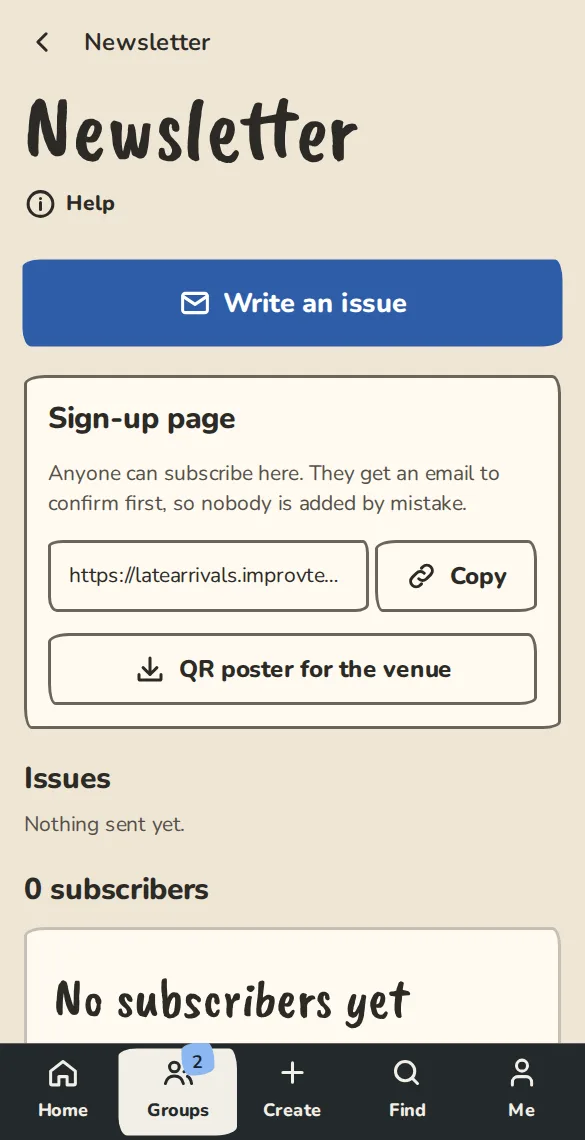
A team's Email subscribers page on a phone: the sign-up link and the subscriber count. - 2
Share the sign-up page or print the QR poster for the venue. People type their email, then tap the button in the email to confirm. Until then they show as Waiting to confirm.
- 3
You can remove someone from the list. They can sign up again if they want to.
Download your list and your posts
- 1
Owners and admins: on Email subscribers, tap Download CSV for everyone on your list, with their status, when they signed up and confirmed, and where they signed up.
- 2
Tap Download all posts for a zip, made in your browser, with every post as a web page and a text file and an index. Each download is logged with who made it and when.
Who writes news
- 1
Owners and admins can always write news.
- 2
To let someone else post, open News, find Who writes news, pick the member and tap Add writer. A theatre can name a community member too.
Good to know
What it doesn't do yet
Try it in a sandbox
Make a private copy with made-up people and follow these steps without changing anything real.
Still stuck?
Write to us from the contact page. Say which page you were on and what you tapped.