Resources is the shelf for the things everyone keeps asking for: the warm-up doc, the show playlist, the poster PDF, your formats. The Archive is a record of the shows you have played.
Resources
- 1
Open the team, then the Resources tab, and tap Add.
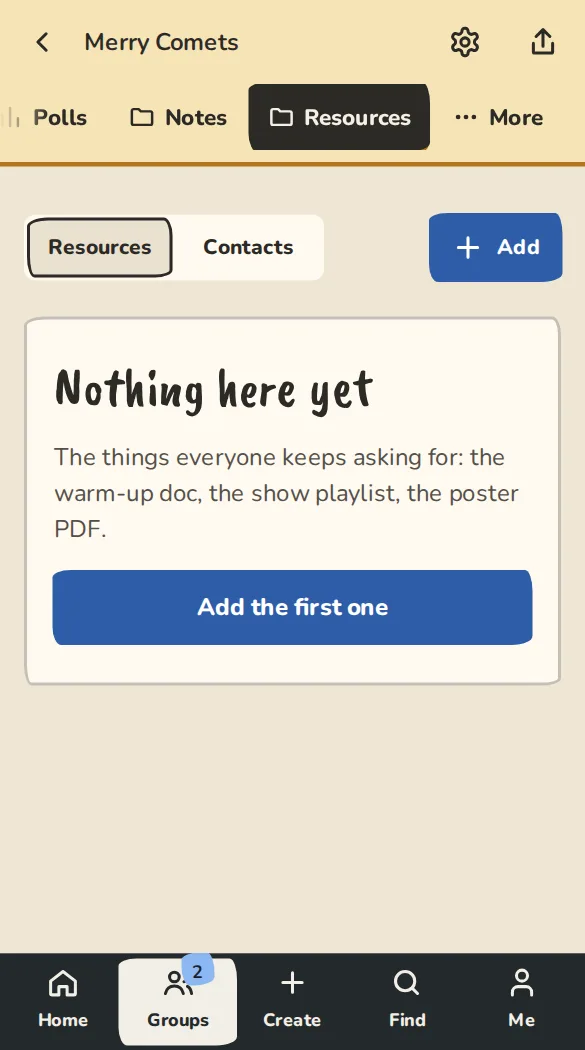
A team's Resources tab on a phone: links, pages and files. - 2
Link: a title, the Web address and an optional note. Tap Add link.
- 3
Page: a plain-text page, like team agreements. Tap Save page. Whoever started it, or an admin, can edit it.
- 4
File: a document up to 10 MB, or a photo up to 20 MB (big photos are made smaller). Everyone on the team can download it.
Class plans
Plan a class block by block, teach from your phone, and keep what worked. For organisers, coaches and course instructors.
- 1
Open a class or practice and tap Class plan (or open More, then Class plans, and tap New plan). Say how long the class is.
- 2
Add blocks: type your own (Name circle) or search the Library and tap Add. The total shows how much of the class is left, or how far over you are.
- 3
Use Up and Down to reorder a block, and Notes for this block for what you want to remember. Tap Save plan.
- 4
Tap Save as a template to keep a copy, such as Level 1, week 3. An organiser can put a template in the house curriculum with a level and a week, so every teacher can start from it.
- 5
Tap Teach it on your phone. Each block has its own timer with Start, Pause and +1 min, and Previous and Next. Tap Worked well or Did not work and it is saved to the notes of that class.
- 6
What each class covered lists your classes with what worked. When you plan a later class of the same course, a block you already taught is marked Covered in an earlier class.
- 7
Only teachers and organisers see a plan. Open a class plan and tap Share with students to show the students its blocks and minutes (never your notes). Print gives a plain page for paper.
The show archive
Only owners and admins edit it, and only for shows that have happened.
- 1
Open a show after the show and tap Archive this show.
- 2
Fill in Who played (it starts from who said yes), Setlist or format as played, Audience count and a Recording link. Tap Save details.
- 3
Tap Add photos: up to 12 a show. Big ones are shrunk, and the location and camera details inside them are removed.
- 4
Tick Show this on the public archive for any show you want on your team site.
- 5
Then open More, then Archive, switch on Make the archive public and tap Save.
- 6
Tap a year for its roll-up: shows played, audience in total and the average.
Good to know
What it doesn't do yet
Try it in a sandbox
Make a private copy with made-up people and follow these steps without changing anything real.
Still stuck?
Write to us from the contact page. Say which page you were on and what you tapped.