The More tab holds everything a team can do besides its schedule. This guide also covers sharing the group chat with members and posting new events to Slack, Discord or Telegram.
The More tab
- 1
Open the team and tap More, the last tab.
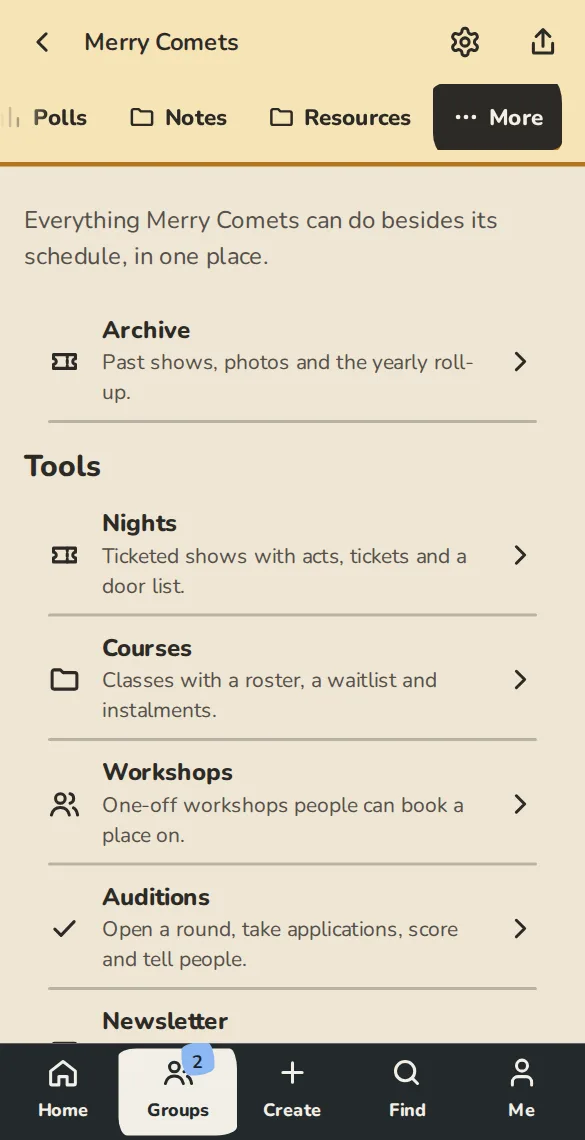
A team's Tools tab on a phone: shows, Newsletter, Website, Stats and the other tools. - 2
It lists the Archive and, once you have asked a venue for a room, Bookings.
- 3
Owners and admins also see the tools: shows, Courses, Workshops, Auditions, News, Stats, Tips and merch, Book a room, Coaching requests and Website.
- 4
On the day of a show, On tonight shows its door list at the top.
The group chat link
- 1
Open Settings, then Group chat link.
- 2
Paste an invite link from WhatsApp, Signal, Telegram or Discord into Group chat invite link and tap Save chat link.
- 3
Members see Open the group chat. It never shows on public pages.
Post to Slack, Discord or Telegram
- 1
Open Settings, then Chat posts.
- 2
Under Connect a chat, pick the Service. For Slack or Discord, paste an incoming webhook into Webhook address. For Telegram, add the Bot token from BotFather and the Chat id, and make sure the bot is in the chat.
- 3
Under What to post, tick new events, a reminder the day before, a summary every Monday morning, or all three. Tap Connect chat.
- 4
Tap Send a test and look in the chat.
- 5
Posts carry an event's title, time, venue name and a link. They never include names, email addresses or who said yes.
This week, for WhatsApp
- 1
In the team header, tap Copy this week's summary.
- 2
Tap Copy the summary and paste it in the chat, or Open in WhatsApp. Each line links to the event, and the links carry nobody's name.
Good to know
What it doesn't do yet
Try it in a sandbox
Make a private copy with made-up people and follow these steps without changing anything real.
Still stuck?
Write to us from the contact page. Say which page you were on and what you tapped.